Saturday, September 22, 2012

Snowlinux 3 E17 Crystal Review: Fast, very fast!

The world of preferred Linux window manager is dominated by Gnome, KDE, XFCE and LXDE primarily. About 90% of the new releases I see are based on either of the four desktops because of the extremely elegant graphical interfaces they offer. However, with changing priorities and a need to provide aesthetically pleasing visual effects, Linux world is also undergoing tremendous transformation, specially Gnome 3. Most of the today's highly sophisticated Linux distros no longer run well on low resource environment or support desktops less than 512 MB RAM.

From Snowlinux 3 e17 Crystal
However, there are some competing window managers who are trying to make a mark by proving ultra-lightweight desktop environments like Enlightenment, IceWM, JWM, Fluxbox, etc. Macpup, Puppy and Bodhi, I know, leverage these lightweight window managers to give very functional distros working on extremely low resource systems.

Having used and liked Macpup for quite sometime, I was eager to try Snowlinux 3 E17 with Enlightenment desktop once I read the release note on Distrowatch. Earlier, I reviewed Snowlinux 3 and was pretty impressed with it. I downloaded the 733 MB 32-bit ISO from the Snowlinux server and first did a live-boot followed by full installation. The system used was Asus K54C laptop with 2.2 GHz Intel 2nd Gen Ci3 processor and 2 GB DDR3 RAM.

Similar to other distros in the Crystal stable, E17 Crystal is also based on Debian Wheezy. Beta 2 installer of Wheezy got released this month only and is more or less the freezed version for the stable release to be announced in, I guess, sometime in Oct'12. Linux kernel used is the same as Snowlinux 3 Crystal Gnome, that is, 3.5.

From Snowlinux 3 e17 Crystal

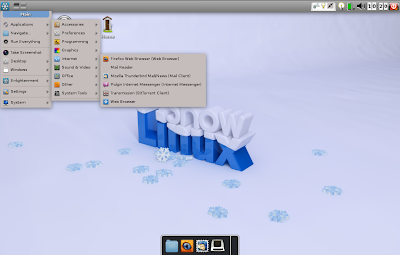
The default desktop has a Mac crossed with KDE feel. However, I could use the settings to change profile to look like Gnome 2 or a typical Snowlinux with only the lower panel. Further, there is a mobile option for touch devices with a touch key pad. I started the mobile option but unfortunately couldn't find a way to go back to the other profiles. Ultimately, reinstalled the OS again as a solution!

From Snowlinux 3 e17 Crystal
Applications
Just like it's gnome counterpart, even here, the applications are carefully chosen considering the systems on which E17 is supposed to run. Most of them are lightweight and less taxing on the system, like, Abiword for Office. There is no point of having a relatively heavier LibreOffice suite and hence, the developers' decision to put Abiword is correct. However, I would have liked to see Gnumeric as well.
Firefox 14 is the primary browser. There is no by default flash support. Lightweight browsers like Dillo or Midori could have been given as an option but anyway, Firefox is miles ahead of all of them. Firefox 15 is already out and users can upgrade to 15. Thunderbird is the default email client with a bit torrent client completing the list. There is a menu entry for a "Web Browser" which I thought would be some lightweight browser provided in addition to Firefox, but it opens Firefox only. Possibly it is a lapse or meant to start the default browser, assuming users will install multiple browsers! Further, for some apps there are no icons! It doesn't look good and possibly the developers should take care to refine this distro further.

From Snowlinux 3 e17 Crystal
Audacious is the default music player and Gnome Media Player is for media. Multimedia codecs are there by default and hence, users can play movie or songs right after installation is complete. Few other applications are there like Geany for programming, leafpad, etc. Overall, it is not many but some essential softwares provided out-of-the-box. For rest of the apps like VLC, Chrome, Skype, Cheese, etc. and multimedia codecs or Flash plugin, there is Debain repository to download from!

From Snowlinux 3 e17 Crystal

One good thing is that all the settings are integrated to a common window, Settings Panel. I find this integration helpful as it reduces a lot of headache for new users.

From Snowlinux 3 e17 Crystal
The OS has two file managers, Thunar 1.2.3 and Enlightenment. I expected Thunar 1.4.0 here as it's been 4 months since it got released.

From Snowlinux 3 e17 Crystal
Anyway, both are fast and provide almost all necessary functionalities like drag and drop, cut-paste-copy, etc. And I tried moving a file from Thunar to Enlightenment by drag and drop and it worked! However, Thunar is definitely a more functional file manager, originally designed for XFCE.

From Snowlinux 3 e17 Crystal

Installation
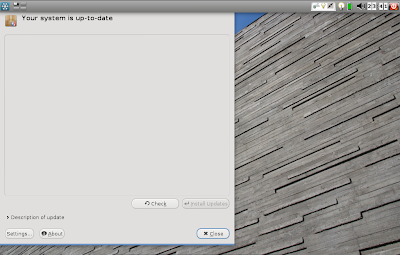
Installation didn't take much time for me, maximum 15 minutes, with the internet switched off. I just had to choose language, keyboard language and location at which I intend to install it. Boot up was quick, within 10 seconds and I didn't face any trouble over any driver not working or internet not working. So, it was practically trouble free for me.  Post installation, Update manager notified me of a 10 MB update and things were up and running after that.

From Snowlinux 3 e17 Crystal
Repository
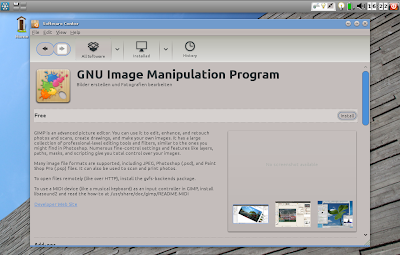
Snowlinux is 100% compatible to Debian repository and everyone knows how rich it is! Applications cna be downloaded via both Software Center and Synaptic Package Manager. I downloaded quite a few essential apps like VLC, Cheese, GIMP 2.8, adobe flash plugin, etc.. All of them worked without any issue, what-so-ever.

From Snowlinux 3 e17 Crystal
RAM and CPU Usage
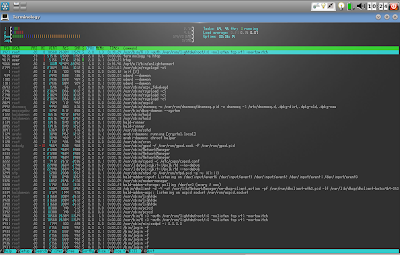
Here, I was a bit disappointed initially. On the same machine, Snowlinux 3 with Gnome 2 consumed 125 MB RAM and 5-10% CPU. I expected E17 edition to consume significantly lower memory but it was around 130 MB with 2-5% CPU usage. But, when I tested RAM/CPU usage with Firefox, Abiword, Media player running, it was around 170 MB with 2-6% CPU usage. So, definitely this distro can run well even on systems with 256 MB RAM! And that is really encouraging.

From Snowlinux 3 e17 Crystal

Overall
Did I mention how incredibly fast and responsive this distro is? Yes, it is fast, real fast. Plus, my touchpad worked out-of-the-box with it. Given the kind of multi-tasking opportunity even on low resource systems. So, for those who are running a PIII or a PIV, instead of installing minimalistic distros, you can try out Snowlinux 3 e17! If it works for you, nothing like it! Barring few rough edges, it is a really secured distro with plenty of functional packages to offer and can put antiquated systems back to life and running. To add to it, Snowlinux 3 E17 is supported until February 2016 and is fully compatible to Debian repo. Further, for modern systems, if you need a Linux which is extremely fast, works with modern drivers and very functional offering a complete range of applications, you should try it out. I bet you won't be disappointed.

Read more!

Tuesday, September 18, 2012

Sabayon 10 Review: Gentoo on steroids!

Gentoo Linux is one Linux OS I haven't tried yet. But, surely this week I am going to try their 2009 Special DVD edition. The best feature of Gentoo is, it is version-less and once you make an emerge update, it has the most up-to-date packages. There are step-by-step guides available to install Gentoo and once I try it, I'll know how complicated or easy it is!

From Sabayon 10
From Sabayon 10
Sabayon is a Gentoo based Linux distro, created with the philosophy of "out-of-the-box" philosophy and it aims to give users a wide range of applications, ready to use and a self-configured operating system. I reviewed the Sabayon 9 as well and was pretty impressed by it!

From Sabayon 10
I downloaded the Sabayon 10 Gnome, KDE and Mate versions. XFCE is also there but I wanted to try out the Mate version, which is new in Sabayon 10 release. ISO sizes are quite heavy, 1.6 GB for Gnome and 2.1 GB for KDE. Mate is 763 MB and is a stripped down version with very few apps. I downloaded 32-bit versions of all the distros.

I booted all of them in my Asus K54C laptop with 2.2 GHz Intel 2nd Gen Ci3 processor and 2 GB DDR3 RAM. Given limited RAM, I guess, 32-bit ISO won't be an issue.

First was a live-boot followed by HD installation. Live-boot was graphical and quick without asking any unnecessary Q&A. Installation using the Anaconda installer was really easy and similar for both Gnome and KDE. It asked me questions on language, keyboard, location and HD drive where to install. I set up the user account and passwords for root and user account. And within 5 minutes this is done. Rest of the installation took about 25 minutes and within 30 min. my laptop is ready with Sabayon installation.

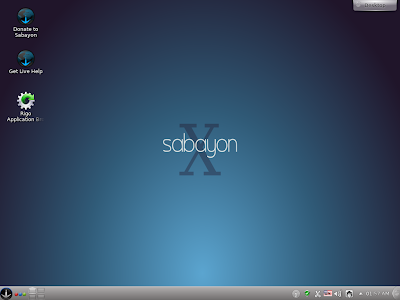
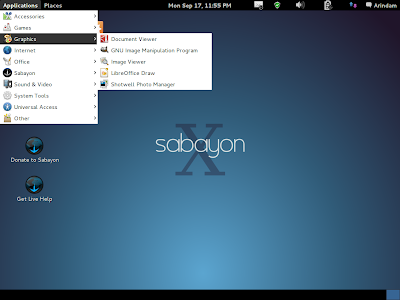
Gnome 3 desktop is similar to what is there in Fedora or OpenSUSE. The dark blue interface looks really well and of course, you can change the wallpaper to make it look less serious. In KDE, you can install themes and it'll look brighter as well. Due to some driver issue, my first boot was in Gnome fallback mode, which I later corrected. Hence, the pictures below show those taken with Gnome fallback.
Applications
Both Sabayon KDE and Gnome have a rich ensemble of the latest applications. Linux kernel is the latest 3.5, Gnome 3.4.2 and KDE 4.9. 

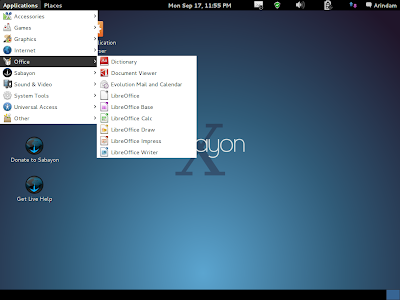
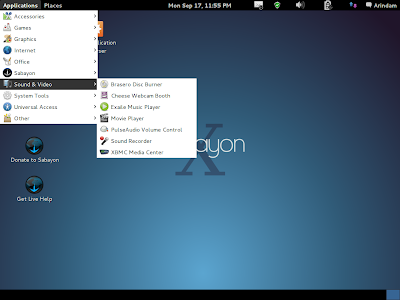
Gnome 3 desktop is very simplistic and resembles a Gnome fallback. From Applications at the left top, you can browse the application list. Main applications are GIMP 2.8 for image editing, Shotwell for image management and uploading to facebook/flickr/twitter, Chromium is the main browser with empathy as chat client, bit-torrent client to download, LibreOffice suite for office work, document viewer to read comics archives and PDF files, Basero, Cheese Webcam booth, Exaile music player, and Gnome media player. Though VLC is not there in the Gnome version, but all Gstreamer and ffmpeg codecs are there and I could play a movie straight away, out-of-the-box!

From Sabayon 10
From Sabayon 10
From Sabayon 10
From Sabayon 10
From Sabayon 10
The KDE version has more apps, mostly KDE centric, apart from what are there in the Gnome version. VLC player is a welcome addition in KDE, and I wished it was there in the Gnome version as well. Nothing plays media better than VLC! Also, desktop globe is by default, in KDE. I really like the 3D view and my 2 year old daughter enjoys playing with it! Good app, for sure.

From Sabayon 10
From Sabayon 10
So, you can understand, most of the applications that a normal user often requires, are all there in the default installation. Adobe flash, too, is pre-installed and I could play youtube videos and live stream channels smoothly. Also, the distro detected my LAN connection well with minor IP configuration inputs. Wifi was also automatically detected when I tested with a Wifi. I didn't face any trouble with sound as well.

All the settings and configurations are in the one stop shop of settings manager, just like other good Linux distros. It really helps new users to configure the system if all the controls are at the same place.

From Sabayon 10
Repository
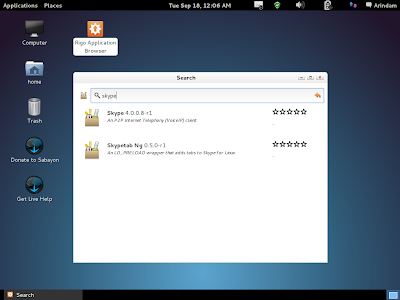
Rigo application browser (whose link you can find on the desktop) is the graphical front-end of the repository. With going in details on entropy and portage package managers, I found the repository to be very good and with the most updated applications. Normally, I find Skype 2.0 in most of the Linux repositories and need ot download the packages for Skype 4.0 from the site. However, Sabayon has Skype 4 in the repo itself. I downloaded Skype and VLC from the repository and both worked well.
From Sabayon 10
From Sabayon 10
From Sabayon 10

One caution, though the Magneto Updates notifier will tell you everything is updated post installation, you need to refresh packages in Rigo before you can see and download other applications. I found Rigo to be very good and easy interface to search and install applications.

CPU and RAM Usage
With only task manager running, both Gnome and KDE gave me very low resource requirements. Gnome used 5-10% of CPU and 225 MB of RAM, where KDE used same CPU and 270 MB of RAM. Even with Chromium on, I could see only 300 MB RAM usage. System never crashed or no error messages popped up during my usage for last 3 days.

Overall
Sabayon made me more interested to try out the Gentoo DVD. I found Sabayon 10 to be really good and user friendly. Everything has a graphical interface and new users won't get lost whether to write 'su' or 'sudo' on the command line! Further, documentation on the distro is quite rich and you can access them through the Sabayon menu. Resource requirement is low which makes it usable on low specs computer/laptops. Applications are really the latest ones and it makes sense to install Sabayon on a top end model as well, as you won't need to reinstall it ever again. Thus, there is no need for a fancy LTS nomenclature as well!

Things work out-of-the-box unless you are really unlucky! Interface looks really serious and smart. I didn't note any instability during my use. I have been a PCLinuxOS fan for long but seems like Sabayon may be my preferred OS after this review.

Read more!

Saturday, September 15, 2012

BlankOn 8.0 "Rote" Review: The least RAM consuming Gnome 3 distro I have ever used!

This review is based on Hud's request. Hud Huni Dhiya is from Indonesia and wanted to get BlankOn 8 reviewed. To begin, BlankOn is a Debian based distro and a result of personal endeavors of Indonesian Linux Motivator Foundation. BlankOn 8.0, code name "Rote", was released on 17th Aug'2012. You can get more details of BlankOn in Wikipedia. Apart from the ethic language, it also supports English and my review is based primarily on the English boot up.

From BlankOn 8.0
The 64-bit ISO is about 1 GB in size and can be downloaded from here. I tested both the Live CD and later, installation to a Asus Dual Core i3 laptop with 2 GB RAM.

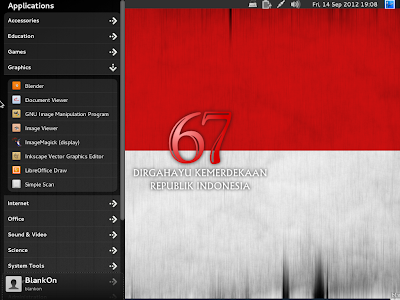
The Linux kernel is 3.2.0 and it has Gnome 3.4.2. Honestly, I was expecting a typical Gnome 3 environment but the desktop surprised me! It was heavily tweaked Gnome 3 built with an HTML 5 and CCS 3 custom desktop shell, called Manokwari. It really impressed me, not possibly by the looks, but the efficiency it gives. The default wallpaper may not be the prettiest but once you change it, I liked the simple look. Also, there is no fancy Activities here - once you click the circle at the top left corner, you get traditional menu of applications. Application list opens within the menu itself. The simplicity of the distro appealed to me.

From BlankOn 8.0
From BlankOn 8.0
Applications
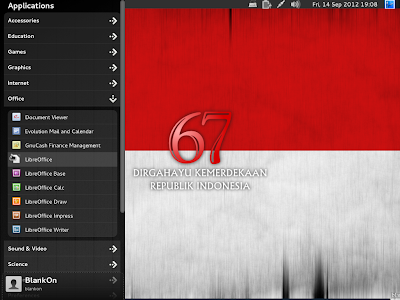
Application-wise, it is rich, of course. You have most of the common apps out-of-the-box, like LibreOffice suite, Cheese, Media players, Chrome, Evolution email client, Pidgin chat, etc. Graphics section is particularly rich, with GIMP 2.8, Blender, Inkscape, ImageMagick, etc. Flash plugin is not by default and you've to download it from the repo. You need to download VLC and Skype as well.

From BlankOn 8.0
From BlankOn 8.0
From BlankOn 8.0
From BlankOn 8.0

From BlankOn 8.0
Other than the regular softwares, Tux Math, Tux typing and Stellarium are present. Stellarium is a good addition here and I really like it. Java is by default in the distro.

From BlankOn 8.0

From BlankOn 8.0
Rest is pretty much typical Debian. It detected my LAN and WIFI without much effort. The distro is very fast and I used it for 5 days without anything crashing. So, stability is good. Further, I didn't have any issue with display or sound settings. Everything got detected automatically. Like Debian, BlankOn is smooth to operate and intuitive. All the controls are located in a single System Settings window and easy for a user to locate and change.
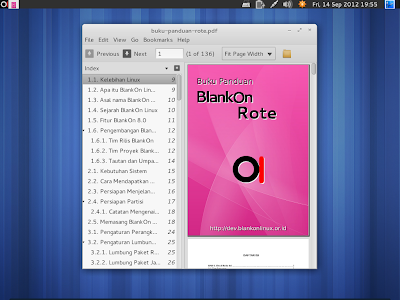
Additionally, there is a comprehensive documentation available on the distro, for the users. However, because of language barrier, I couldn't jump into details though I could see all the functionalities of the OS explained with nice figures and words.

From BlankOn 8.0

Installation
Installation took me just 5 minutes. You need to decide the language, keyboard and the drive where you want to install and the rest part is just clicking next. I guess it is designed targeting the newbies as well and hence, kept very simple. Definitely commendable effort and simplicity of installation is at par with Ubuntu or a Linux Mint.

CPU and RAM Usage
Post installation RAM consumption was 255 MB with only system monitor running and CPU usage of 5-10%. Kudos to the developers! I haven't seen any 64-bit Gnome 3 desktop to consume so low RAM yet. Possibly BlankOn may not be the eye-candy for you but it is very efficient and functional.

From BlankOn 8.0
Repository
Repo is somewhat a hybrid of Debian and BlankOn. You have to install applications through Synaptic package manager. I would have preferred a Software Manager kind of app through which I can see, choose and download favorite apps. Synaptic manager is messy, meant primarily for power users and definitely not for newbies. I hope the developers add a software manager to it in future.

From BlankOn 8.0
Overall
I liked BlankOn for its simplicity, efficiency and intuitiveness. It is fast, stable and has good applications to offer out-of-the-box. There are some rough edges as well. The modified Gnome 3 desktop is very functional but may not appeal to those who are looking for eye-candies. Secondly, I am not very fond of offering synaptic package manager as the only application manager for newbies. Synaptic is messy and many a times breaks the system if operated by a novice. A software manager should be there in a distro which aims to be functional for the newbies. Apart from these rough edges, my last word - I haven't seen any 64-bit Gnome 3 Linux distro to run on 250 MB RAM and I feel the Manokwari desktop and BlankOn distro has promise.

Read more!

Sunday, September 9, 2012

OpenSUSE 12.2 KDE Review: Is it better than Kubuntu 12.04.1 or PCLinuxOS 12.08?


Last night I did my bit with OpenSUSE12.2 Gnome and is still thoroughly impressed by it. Next in line for my test was the KDE counterpart. Personally, I prefer Gnome over KDE. But, and surely but, given so many changes and versions and general resource hungry-ness of Gnome 3, somehow my strong preference for Gnome has gone down and instead I started liking KDE more. Further, I see the number of good distros with KDE is increasing everyday. Definitely KDE is doing somethings correct here!
To test OpenSUSE 12.2 KDE and its challengers, I used the same laptop as in case of Gnome – Asus K54C laptop with 2.2 GHz Intel 2nd Gen Ci3 processor and 2 GB DDR3 RAM. First, I did a live usb boot and then installed the OS in around 8 GB space partitioned specifically for testing Linux distros. Same laptop was used to test out PCLinuxOS 12.08 and Kubuntu 12.04.1.
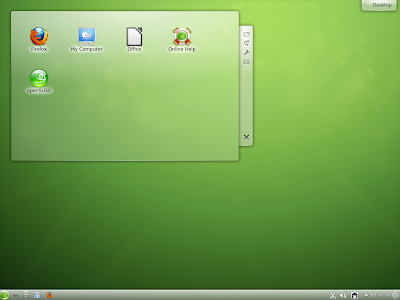
Coming to OpenSUSE 12.2, the 64 bit ISO is about 694 MB in size. Live boot was quick and settings were automatically detected. The interface is simple and clean with typical OpenSUSE green wallpaper. The boot screen will be familiar to Window 7 users with lights from different direction converging to OpenSUSE logo! Interface is very refined and looks bright.

Applications
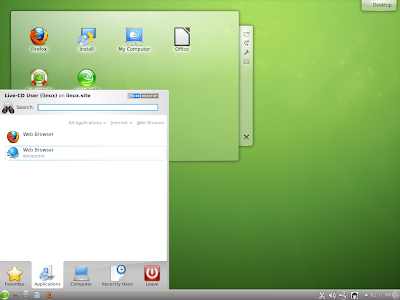
Application-wise, I would say, most of the basic applications are provided. Firefox 14 is the default browser, with Konqueror (the KDE browser), micro-blogging client, mail client and bit-torrent. No chat client is present by default.
From OpenSUSE 12.2 KDE

LibreOffice 3.5 is in the ISO but no LibreOffice Calc or Base. This is same as the Gnome version. You have to download it from the software repository.
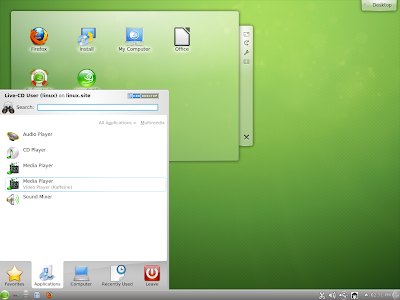
Multimedia section for KDE version is much better than the Gnome version – at least Amarok, a CD player and Kaffeine (KDE video player) are there! But, restricted audio/video codecs are not out-of-the-box for OpenSUSE and needs to be downloaded. Once you open Kaffiene, it will ask your permission to download audio-video codecs and there is a guide here as well, from the OpenSUSE forums to help you out on it!
Graphics section is weak, primarily due to the absence of a good image editor like GIMP, but the 2.8 version can be downloaded from the repo.
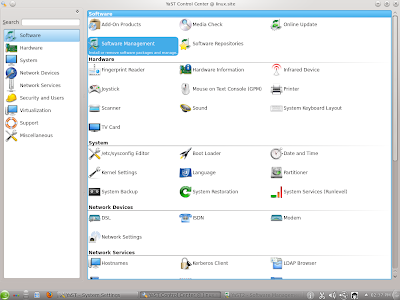
However, whatever programs you want can be downloaded through Software Manager in YaST. Also, you have OpenSUSE compatible files from Skype, VLC, Chrome, etc which you can install through YaST. I did all these for the Gnome installation and KDE won't be much different. YaST is really simple, intuitive and good! It puts all your Software, Hardware, Security and other settings at the same place and you don't need to go anywhere else.
From OpenSUSE 12.2 KDE
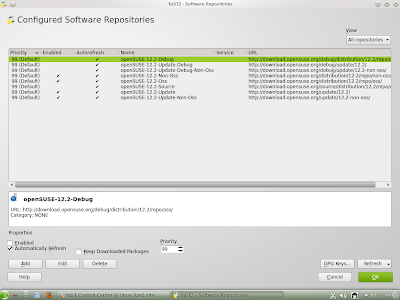
Software repository is nicely organized into different sections.
From OpenSUSE 12.2 KDE
Another good thing was the KDE version immediately recognized my touchpad, unlike the Gnome counterpart. Definitely a plus point of installing KDE edition from my side.
Once I was comfortable playing with the live boot, I decided to install it. Installation was easy, mostly it would recognize my laptop settings and entire thing takes about 5-10 minutes. I didn't face any issue of sound card, LAN, Wifi or display when I booted up post installation.
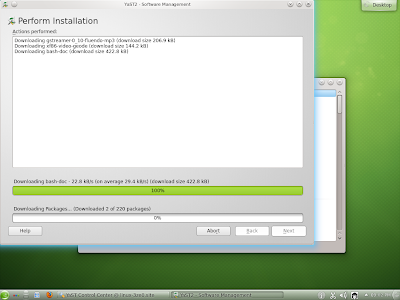
Post installation, I decided to install Adobe flash KDE plugin first. Choosing the app from YaST was very easy. Difficult part was when I saw 1.1 GB (220 updates) of updates were required to be downloaded before installing Adobe Flash and Gstreamer codecs! In Gnome edition, I had to download only 300 MB and that's it! Also, the distro was released on 5th September and I was installing on 9th September! What major calamity could have happened in between to download a whopping 1 GB of updates. The developers should take care of this and it is a definite let down for me. I haven't seen such a download of updates in any recent distro I installed. And add to it, Firewall settings are such that post-update, internet won't work and you've to reset it to make it work. Definitely not a desired scenario for the new users who doesn't know the nitty-gritties of Linux.

From OpenSUSE 12.2 KDE
So, I have kept the update download on hold right now. I'll update it over next week. I guess installation of Skype, VLC and other required software would be as easy as Gnome edition and will keep you posted on this.

Comparison with Kubuntu and PCLinuxOS
Next comes comparison with PCLinuxOSKDE 12.08 (32-bit)  and Kubuntu 12.04.1 LTS 64-bit. I haven't included the Manjaro KDE here intentionally as it is a just released distro. Though really good, but it would be unfair to club with the already established names. My analysis was based on the following parameters:
ParametersOpenSUSE 12.2Kubuntu 12.04.1PCLinuxOS 12.08
Linux Kernel3.4.63.2.03.2.18
KDE version4.8.44.8.44.8.3
ISO Size694 MB736 MB1.3 GB
Installation complexityEasy, just by choosing the default options, LVM gives the most optimal optionEasiest inarguably! Takes just 2-3 minutes for settings if you unplug internet.Easy, space allocation for root and swap may be complicated for newbies
Installation time5 min., if you choose LVM option30 min, because of language pack, hardware settings, etc., even without internet! However, somewhere it gets stuck and it took me 4 attempts to successfully install it!15 minutes, unless you complicate the HD space allocation
Software-by-defaultLimited but intelligently chosen. Given the ISO size, I would say, quite good. Notable omission LibreOffice Calc.Good, but Firefox is not present and needs to be downloaded. Out-of-the-box apps are more than OpenSUSE.Richest, has everything you dream of incl. Virtualbox, VLC, Skype (2.2 though), GIMP 2.8 and what not! LibreOffice is full – has Calc and Base as well. All restricted codecs and flashplugin by default.
Post install update1.18 GB100+ MB107 MB
RepositoryVery updated, quite rich & external apps available. 1-click install via YaST is helpful to install external apps. Software Manager in YaST is very functional and easy to operate.Richest undoubtedly. Ubuntu Software Manager is really easy to operate.Rich but not very updated, compatible rpm packages available externally. However, installation process is not easy through synaptic.
CPU Usage2%6%6%
RAM Usage389 MB387 MB241 MB
Touchpad recognized by defaultYesNoYes
Complexity of settingsYaST simplifies and puts all settings at the same place.Simple, Simple, everything at the same place with a shortcut at the left bottom panel
Ease of UseSmooth and easy to use.Smooth and easy to use.Smooth and easy to use.
Supported till18 months, or March 20145 years, or March 2017Rolling release
IssuesNone. Sound, LAN, wifi, camera, etc recognized and worked wellNone. Sound, LAN, wifi, camera, etc recognized and worked well.None. Sound, LAN, wifi, camera, etc recognized and worked well

Now, OpenSUSE KDE is surely better than Kubuntu 12.04.1 which took me 4-5 attempts to install! Further, OpenSUSE 12.2 has a more updated Linux kernel and KDE desktop than PCLinuxOS 12.08. Repository is richer, YaST is more functional than Synaptic for PCLinuxOS. 
But, if you talk of out-of-the-box apps, nothing beats PCLinuxOS 12.08! Every app that you may use or think important, is there! However, not all apps have the latest version in the ISO or the repository, e.g. Skype is 2.2. Also, within 4 days of release OpenSUSE required over 1 GB of updates to be downloaded and even after more than 2 weeks of release, PCLinuxOS 12.08 required only 100 odd MBs of updates!
The RAM consumption difference between PCLinuxOS and OpenSUSE can be best ignored as PCLinuxOS is 32-bit. There is no specific 64-bit edition for PCLinuxOS, though the developers say the same ISO works on 64-bit machines as well.

Which is the best KDE distro?
So, in overall, both OpenSUSE 12.2 and PCLinuxOS 12.08 performed better than Kubuntu 12.04.1 LTS on my machine. OpenSUSE, possibly, is the most refined of the lot and has a better application repository with better installation process (YaST). If you can tolerate the 1 GB of updates, it is a pretty stable and solid distro for you. PCLinuxOS 12.08 on the other hand provides you with a more complete experience, has a rolling release but may not have the most updated softwares to offer. My ranking based on all the parameters above is:
  1.  OpenSUSE 12.2 KDE, for being stable and the most updated for the three and a brighter default desktop
  2. PCLinuxOS 12.08, for being stable and offering a complete experience to the users; but its software repository is not updated as frequently as the other two
  3. Kubuntu 12.04.1, you have to be really patient to install and use it. It didn't recognize my touchpad and no Firefox as well!
OpenSUSE 12.2 KDE is surely ahead of Kubuntu 12.04.1 but with PCLinuxOS 12.08, it has a tough choice. I put OpenSUSE marginally ahead because of its rich repository.

Read more!