Showing posts with label RAM usage. Show all posts

Thursday, November 8, 2012

Tiny Core Linux 4.7 Review: A base to build your own system!

First when I used Tiny Core Linux in 2009, I just started using Linux, and I was a bit disappointed with Tiny Core. Later when my experience and learning grew, I realized that I chose the wrong file to boot (Tiny Core and not Core Plus) and I completely underestimated an otherwise very efficient distro.

When the 4.7 release note came in Distrowatch a few days ago, I was prompt to download the Core Plus 67 MB ISO - really "tiny" if you compare it to any other distro! Now, given this is my first "real" experience with Tiny Core, there are chances of a lot of things being mentioned here, which may seem juvenile to experience Tiny Core users. But, I am taking my chances - can't stop myself from reviewing such an amazing distro.

What I did is initially do a live boot and then did a frugal installation on a 8 GB partition. In Core plus, essentially what you get is a shell on which you can build your own customized ultra-lightweight system with the preferred apps. Given this introduction, it is understandable that sufficient exposure and expertise is required to try out Tiny Core and explore its potential. Otherwise, you may end up disappointed like what happened to me in 2009 as I was limited that time by my own knowledge of Linux.


From Tiny Core Linux 4.7
In 4.7 version, Tiny Core comes with Linux kernel 3.0.21 which is same as the 4.6 version. The system used for the test is Asus K54C with Intel Core i3 processor (2.4 Ghz) and 2 GB RAM. Definitely not a resource constrained machine!

Core Plus provided me several desktop manager option at bootup like FLWM, Ice WM, Fluxbox, etc. I booted it up with default FLWM as I like it's minimalistic look with a docky below. It gives a no-nonsense and professional impression.

LAN was detected automatically, sound card worked, touch pad worked out of the box with both single/double tap, vertical scroll working, which is good. In Wifi mode, on clicking the wifi icon in the docky, it opened a terminal which scanned quickly the wifi networks around and asked me which one I would like to choose. After choosing the home network, I gave the password and the connection was instant! Pretty simple and efficient, I really like it!

There is no auto-mount and the user is required to mount the drives through control panel or mount icon in the docky to access the drive.

Applications
You won't get much default applications out-of-the-box with core plus but most of the relevant applications can be downloaded from repositories through "Apps" and/or "Scm Apps". I downloaded my favorite applications like
  • Browser: Firefox 16, Chromium 22.0.1229.79 for Tiny Core
  • Plugins: Adobe Flash 11, had a tough time in installing it
  • Music: Banshee
  • Video: VLC 2.0.1
  • Notes: Leafpad
  • Photos: Mtpaint
  • Chat: Pidgin
  • File Manager: Thunar and Nautilus
  • Office: Abiword, Gnumeric, pdf reader and writer, etc.
  • Conky to decorate the otherwise blank desktop!
From Tiny Core Linux 4.7
LibreOffice suite 3.5 and 3.6 are there in the repos along with a host of other applications like Clementine, Audacity, Audacious, Opera, Seamonkey, etc. The repository may not be rich like a Debian or a Ubuntu but enough applications are there to satisfy most common needs. I didn't install Skype, but there is a getskype.tcz in the repository to install Skype 2. Same holds for Nvidia drivers as well - it exists in the repository but I didn't require it.

Next was installation of the restricted codecs, ffmpeg, gstreamer, etc. and the application manager works well to resolve all the dependencies and satisfy all the preconditions before downloading an app. However, one thing I noted that there are quite a few antiquated apps like Firefox 10 which doesn't work even if you download and install. Experienced users would know a priori exactly what he is looking for, so no pain for them even if redundant apps are there in the repository. But, it may frustrate a bit the first time users.


From Tiny Core Linux 4.7
With regards to settings, Tiny Core offers an integrated view through control panel. I really like the option and I could set up most of the stuff from there without hitting the terminal.


From Tiny Core Linux 4.7
Installation
Installation is easier than I expected. You need to check whether you want to do a frugal installation in hard disk, or install in USB. Next thing for frugal is to decide on the partition where the OS is to be installed and whether to install boot loader. I made a frugal installation with whole disk option and boot loader to keep things simple. It would then ask for the formatting options with ext4 being the default. All it takes is about 5 minutes of time and you are done! Reboot and enjoy!


From Tiny Core Linux 4.7
Post installation, I downloaded almost all the basic applications required for daily chores, as mentioned in the application section.Though the repository may not the richest around but offers most of the common applications.

Performance
The default desktop takes about 30-40 MB of RAM to get started with 0% CPU usage. With Firefox playing an Youtube video, Abiword, Gnomeric, Nautilus file manager and terminal open, the RAM consumption was 200 MB and CPU usage 28%! Undoubtedly even in low resource systems like a P3 or a P4, Tiny Core will offer blazing speed and ability to multi-task.


From Tiny Core Linux 4.7
Issue with Flash plugin
These days internet is synonymous with watching online videos and/or live streams. With getflash package, I had a bit of rough time. Initially when I clicked it, it showed that it had downloaded the program at /tce folder in root. However, when I started firefox, I wasn't able to play any flash video. I did it thrice but with no success.

I downloaded the flash plugin package for other linux from Adobe site itself and installed it via terminal. It worked for me. I could see the youtube videos but Firefox kept popping notifications to install additional missing plugins to play the media. Not sure where it goofed up!
From Tiny Core Linux 4.7


From Tiny Core Linux 4.7
Overall
Tiny core linux really impressed me with its speed, simplicity and power. If I compare it to Puppy Linux, Tiny Core seems a bit lighter and faster! Aesthetically too, it looks good with transparent docky and terminal.

Further, settings and usage is far too simple in Tiny Core (there is a tendency of lighter distros to be more complicated for users than the heavier counterparts). Most of the things like wifi, lan, sound, touchpad, etc. worked like a charm for me. Accepted, I didn't try out a lot of things there but whatever I tried out worked!

Definitely I recommend Tiny Core linux as a live-usb as well as to those who are in search of super light-weight professional looking operating system. Given it supports touchpad, nvidia drivers, webcam, etc., I can safely recommend it for both new as well as old systems. I bet once you start using Tiny Core, you'll start loving this highly functional distro.

Read more!

Saturday, September 22, 2012

Snowlinux 3 E17 Crystal Review: Fast, very fast!

The world of preferred Linux window manager is dominated by Gnome, KDE, XFCE and LXDE primarily. About 90% of the new releases I see are based on either of the four desktops because of the extremely elegant graphical interfaces they offer. However, with changing priorities and a need to provide aesthetically pleasing visual effects, Linux world is also undergoing tremendous transformation, specially Gnome 3. Most of the today's highly sophisticated Linux distros no longer run well on low resource environment or support desktops less than 512 MB RAM.

From Snowlinux 3 e17 Crystal
However, there are some competing window managers who are trying to make a mark by proving ultra-lightweight desktop environments like Enlightenment, IceWM, JWM, Fluxbox, etc. Macpup, Puppy and Bodhi, I know, leverage these lightweight window managers to give very functional distros working on extremely low resource systems.

Having used and liked Macpup for quite sometime, I was eager to try Snowlinux 3 E17 with Enlightenment desktop once I read the release note on Distrowatch. Earlier, I reviewed Snowlinux 3 and was pretty impressed with it. I downloaded the 733 MB 32-bit ISO from the Snowlinux server and first did a live-boot followed by full installation. The system used was Asus K54C laptop with 2.2 GHz Intel 2nd Gen Ci3 processor and 2 GB DDR3 RAM.

Similar to other distros in the Crystal stable, E17 Crystal is also based on Debian Wheezy. Beta 2 installer of Wheezy got released this month only and is more or less the freezed version for the stable release to be announced in, I guess, sometime in Oct'12. Linux kernel used is the same as Snowlinux 3 Crystal Gnome, that is, 3.5.

From Snowlinux 3 e17 Crystal

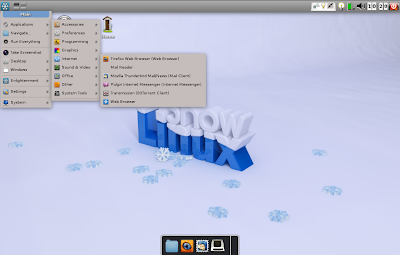
The default desktop has a Mac crossed with KDE feel. However, I could use the settings to change profile to look like Gnome 2 or a typical Snowlinux with only the lower panel. Further, there is a mobile option for touch devices with a touch key pad. I started the mobile option but unfortunately couldn't find a way to go back to the other profiles. Ultimately, reinstalled the OS again as a solution!

From Snowlinux 3 e17 Crystal
Applications
Just like it's gnome counterpart, even here, the applications are carefully chosen considering the systems on which E17 is supposed to run. Most of them are lightweight and less taxing on the system, like, Abiword for Office. There is no point of having a relatively heavier LibreOffice suite and hence, the developers' decision to put Abiword is correct. However, I would have liked to see Gnumeric as well.
Firefox 14 is the primary browser. There is no by default flash support. Lightweight browsers like Dillo or Midori could have been given as an option but anyway, Firefox is miles ahead of all of them. Firefox 15 is already out and users can upgrade to 15. Thunderbird is the default email client with a bit torrent client completing the list. There is a menu entry for a "Web Browser" which I thought would be some lightweight browser provided in addition to Firefox, but it opens Firefox only. Possibly it is a lapse or meant to start the default browser, assuming users will install multiple browsers! Further, for some apps there are no icons! It doesn't look good and possibly the developers should take care to refine this distro further.

From Snowlinux 3 e17 Crystal
Audacious is the default music player and Gnome Media Player is for media. Multimedia codecs are there by default and hence, users can play movie or songs right after installation is complete. Few other applications are there like Geany for programming, leafpad, etc. Overall, it is not many but some essential softwares provided out-of-the-box. For rest of the apps like VLC, Chrome, Skype, Cheese, etc. and multimedia codecs or Flash plugin, there is Debain repository to download from!

From Snowlinux 3 e17 Crystal

One good thing is that all the settings are integrated to a common window, Settings Panel. I find this integration helpful as it reduces a lot of headache for new users.

From Snowlinux 3 e17 Crystal
The OS has two file managers, Thunar 1.2.3 and Enlightenment. I expected Thunar 1.4.0 here as it's been 4 months since it got released.

From Snowlinux 3 e17 Crystal
Anyway, both are fast and provide almost all necessary functionalities like drag and drop, cut-paste-copy, etc. And I tried moving a file from Thunar to Enlightenment by drag and drop and it worked! However, Thunar is definitely a more functional file manager, originally designed for XFCE.

From Snowlinux 3 e17 Crystal

Installation
Installation didn't take much time for me, maximum 15 minutes, with the internet switched off. I just had to choose language, keyboard language and location at which I intend to install it. Boot up was quick, within 10 seconds and I didn't face any trouble over any driver not working or internet not working. So, it was practically trouble free for me.  Post installation, Update manager notified me of a 10 MB update and things were up and running after that.

From Snowlinux 3 e17 Crystal
Repository
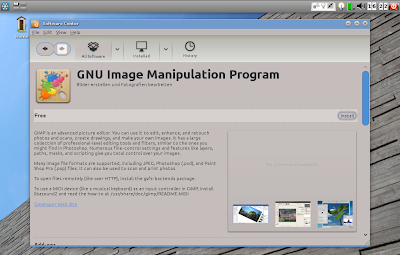
Snowlinux is 100% compatible to Debian repository and everyone knows how rich it is! Applications cna be downloaded via both Software Center and Synaptic Package Manager. I downloaded quite a few essential apps like VLC, Cheese, GIMP 2.8, adobe flash plugin, etc.. All of them worked without any issue, what-so-ever.

From Snowlinux 3 e17 Crystal
RAM and CPU Usage
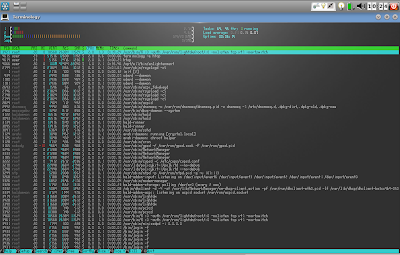
Here, I was a bit disappointed initially. On the same machine, Snowlinux 3 with Gnome 2 consumed 125 MB RAM and 5-10% CPU. I expected E17 edition to consume significantly lower memory but it was around 130 MB with 2-5% CPU usage. But, when I tested RAM/CPU usage with Firefox, Abiword, Media player running, it was around 170 MB with 2-6% CPU usage. So, definitely this distro can run well even on systems with 256 MB RAM! And that is really encouraging.

From Snowlinux 3 e17 Crystal

Overall
Did I mention how incredibly fast and responsive this distro is? Yes, it is fast, real fast. Plus, my touchpad worked out-of-the-box with it. Given the kind of multi-tasking opportunity even on low resource systems. So, for those who are running a PIII or a PIV, instead of installing minimalistic distros, you can try out Snowlinux 3 e17! If it works for you, nothing like it! Barring few rough edges, it is a really secured distro with plenty of functional packages to offer and can put antiquated systems back to life and running. To add to it, Snowlinux 3 E17 is supported until February 2016 and is fully compatible to Debian repo. Further, for modern systems, if you need a Linux which is extremely fast, works with modern drivers and very functional offering a complete range of applications, you should try it out. I bet you won't be disappointed.

Read more!

Saturday, September 1, 2012

PCLinuxOS KDE 2012.08 Review: Better than ever!

To start with, I became a big fan of PCLinuxOS since February this year. First time, I used PCLinux (I am still a Linux n00b) when I downloaded the Feb'12 release and installed it in one of the systems I have. I am not a KDE fan but PCLinuxOS is different! I have used Ubuntu mostly in last 2 year or so and I could never successfully update Ubuntu - I had to do fresh install every time! PCLinuxOS is actually the first Linux OS which I could upgrade without breaking anything. Also, there's a knowledgeable and helpful forum in place to help you out of issues like screen not displaying proper resolution and stuff like that!

From PCLinuxOS 2012.8
The netbook where I have PCLinuxOS is already upgraded to the latest version and is working good. However, to test what's new in this release, I downloaded the ISO separately - just to try it out. The present ISO is a little bit on the heavier side, nearly double of the last release, 1.3 GB! I did a liveboot on my Asus EeePC 1101HA with 1.3 GHz dual core Intel Atom processor and 1 GB DDR3 RAM. Not really great specs but PCLinuxOS 2012.02, now upgraded to 2012.08, runs smoothly on the machine.
The appearance hasn't changed significantly from the last edition with minor facelifts here and there. Overall, there's no drastic change to shock the users. Linux kernel is updated to 3.2.18.2bfs and KDE is 4.8.3. I guess you can install KDE 4.8.5 or 4.9 (final version to be released) in PCLinuxOS as well. NVIDIA and ATI support is out-of-the-box and it works well with common graphic cards.

Applications
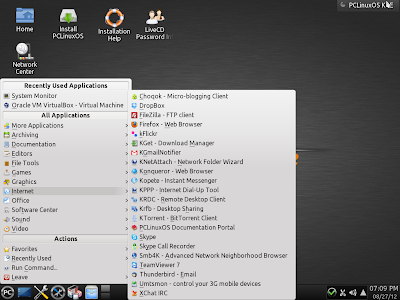
A major change in this version to provide the users more complete out-of-the-box experience and that also explains the increase in ISO size! You name an app and it is here in PCLinuxOS 2012.08. Unlike the Feb'12 release, where you had to download LibreOffice suite, this time LibreOffice is out-of-the-box. Internet section is possibly the richest I've seen in any Linux OS with Firefox 14, Konqueror, Dropbox, FileZilla FTP client, K-get download manager, desktop sharing, bit-torrent, Thunderbird 14, Xchat, and Skype by default in the ISO along with other regular KDE apps. I think it is more than enough for a regular user. Flash support is by default and Youtube, Hulu, Dailymotion, etc. flash videos works well in Firefox. I did live streaming of some Indian TV channels and everything worked fine without any hiccups.
From PCLinuxOS 2012.8

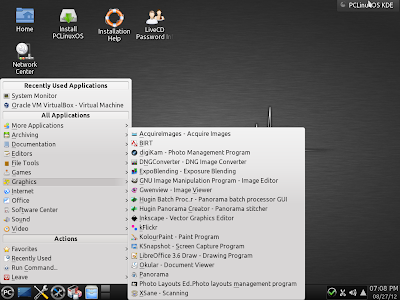
Multimedia section is very good with VLC, Television viewer, Webcam app Kamerka, DVD slideshow maker, Clementine music player, Audio format converter, etc. I would have loved to see Amarok but Clementine too is really good. Graphics has GIMP 2.8, Gwenview, Flick photo sharing app, Photo management programs, apps to manage raw images from DSLR cams and convert them into jpg or png files, etc. As a topping, the developers have provided virtualbox as well! Virtualbox provided in the installation ISO is 4.1.18 which is not the latest one but once you use it, it will prompt to download the latest rpm package 4.1.20.

From PCLinuxOS 2012.8
With so many ready to use apps, it is an envious ensemble and I doubt I would require any more app to download from the repository.

Repository
PCLinuxOS has a pretty good repository and you can download via synaptic package manager. Some of the packages like Skype (repo has 2.2), Firefox (now that distros are coming with FF15), etc. in the repository are not updated or not there (like Chrome). For these, the rpm files are widely available in internet. I download two of my favorite applications, Pidgin and Gwibber and installed them from the repository. Also, I downloaded Chrome rpm packages from Google Chrome website and installed it without any hassle, whatsoever.

From PCLinuxOS 2012.8

CPU and RAM Usage
CPU usage is about 5-10% and 300 MB RAM with only system monitor running. Even in my 1 GB RAM netbook, where I upgraded PCLinuxOS 2012.02 to 2012.08, often I do a lot of multi-tasking with Firefox, LibreOffice calc and LibreOffice Writer open without any slowing down. Hence, I won't say PCLinuxOS is a resource hungry distro.

Overall
I definitely recommend PCLinuxOS 2012.08 for it is arguably the best KDE distro available right now. Linux Mint KDE would be the other KDE distro I would think of as a competition. Both are easy to the eyes in terms of looks, works really well with commonly available computers and are easy on the resources. However, one advantage PCLinuxOS has, is its rolling release. You need to install the OS only once and won't have to take the added burden of re-installing it again. It will update itself to the latest with every available release. But, it doesn't work that well in Ubuntu or Mint - there is an upgrade option but it never worked with me in last 4 attempts - every single time something got broken and I had to do a fresh installation with the added burden of saving all the files and favorites in an external HDD and downloading my favorite apps again. I haven't tried PCLinuxOS on 64 bit machine yet. Developers say that the same installation ISO works for both 32 and 64 bit machines but I need to check whether it is able to read beyond 4 GB RAM. Otherwise, two thumbs up for this amazingly refined distro with perhaps the richest collection of apps keeping every user in mind. It doesn't matter whether you are new to Linux or a Linux veteran, once you start using PCLinuxOS, I bet you'll like it! Windows XP and 7 users would be at home in PCLinuxOS as KDE is the closest to Windows than Gnome or XFCE. And it is getting better with every release!

Read more!

Friday, August 10, 2012

Pear Linux 5 Review: Best Mac OS X look alike distro in Linux world

Many Linux purists might get offended with distros like LuninuX or Pear. But, the fact is that both these distros look really beautiful while retaining the functionality of Ubuntu. I have a preference for Pear Linux, as I myself is using it for last 3-4 weeks or so.

From Pear Linux 5
I downloaded Pear Linux from its website. I replaced Ubuntu 12.04 LTS with Ultimate OS and Ultimate OS was too unstable for me and hence, replaced Ultimate with Pear OS which has good stability. Currently I am using the 64-bit version which has it's own set of faults which I will discuss down-the-line.

The ISO is moderately heavy, 1.2 GB. The OS boots up real quick and is comparable to Ubuntu 12.04 LTS. The Gnome 3 shell is heavily tweaked to give a Gnome 2 appearance and a docky makes for the Mac OS X look.

From Pear Linux 5
From Pear Linux 5
From Pear Linux 5
The developers have taken care that the boot up screen doesn't show Ubuntu like Luninux. The Linux kernel and Gnome shell is the same as of Ubuntu 12.04 LTS. This snapshot is from my trial boot up in virtualbox and once you install, Linux kernel will get updated to the latest one 3.2.0-27.

From Pear Linux 5
Applications
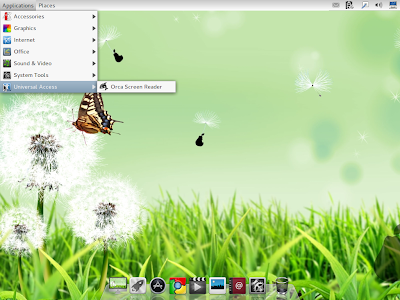
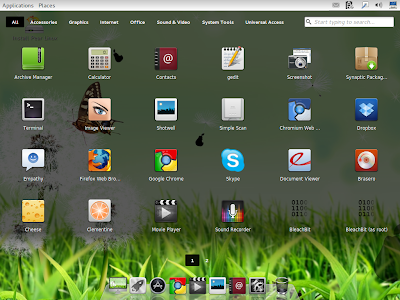
App-wise quite rich, I must say. Applications can be opened from the Application icon, as well as from Launchpad.

From Pear Linux 5
From Pear Linux 5

It has most of the apps you would expect from a good Linux OS like Firefox 13, Chromium, Skype, Empathy, Dropbox, Shotwell photo manager, Basero, Cheese, Clementine, Movie Player, etc. There is no LibreOffice, neither VLC or Flash. You have to download all these along with codecs to play media well. Luninux actually scores over Pear in terms of providing office along with the installable media.

The app store is primarily based on Ubuntu but heavily tweaked. It looks simple, elegant and less confusing. All the important apps are put on the front page, which helps first time users.

From Pear Linux 5

CPU & RAM Usage
Pear 64 bit uses about 330 MB RAM and 1-5% CPU with only system monitor running.
From Pear Linux 5
Glitches
As an user, I found couple of glaring glitches. Once you update the OS after installation, the menu at the top left corner, disappears. Nor the launchpad works. It shows "Failed to execute child process slingshot". I tried uninstalling and reinstalling slingshot, but it doesn't help. Nor that I use it much. Docky is good enough to pin my favorite apps and the distro gives me reasonably good performance. It is very stable. I guess, this is a problem of the 64-bit OS and launchpad in 32-bit OS works just fine.

Overall
 I like Pear OS for the finesse in it's interface. Productivity-wise it is good and a very good substitute for those who want to replace Ubuntu 12.04 LTS, bugged by Unity or those who are really fond of docky. Added benefit is the transparent interface and whatever special effects are there doesn't hamper with productivity. A real good and artistic Linux OS indeed.

You can view more screenshots at my Picasa album.


Read more!

Damn Small Linux (DSL) 4.11: Can run only on 64 MB RAM as well!!!!!

The last version (4.4) of DSL came, I guess in 2008. Hence, in my article on lightweight Linux distros, I didn't include DSL. But, now I have to include it. DSL 4.11 is here and boy! What a lightweight OS it is! I couldn't imagine a fully functional distro with graphical desktop taking only 18-20 MB of RAM! Incredible!

From Damn Small Linux 4.11
To test, in virtualbox, I booted it up with only 64 MB RAM and I didn't feel any lag while browsing net. Of course, I wasn't multi-tasking.

From Damn Small Linux 4.11

I saw the release of DSL 4.11 in distrowatch and immediately downloaded the small ISO, 50.6 MB in size. The boot up was fast and I was greeted with a simple but elegant desktop, as shown above. And you can switch between JWM and Fluxbox (both very lightweight, JWM lighter) without logging off, from the desktop option in Menu.

From Damn Small Linux 4.11

Applications
I didn't expect many apps in a 51 MB distro. But, to my surprise, most of the apps that you would expect in a fully functional distro are there, of course, keeping in mind the kind of machines in which this distro is capable of running. For example, there is no LibreOffice/OpenOffice/Abiword/Gnumeric, but we have Ted Word Processing & Slag Spreadsheet. Agree, both of these look antiquated but good enough for writing casual notes or maintaining household expenses.

From Damn Small Linux 4.11
Other apps include Firefox, Dillo & Netrik as internet browsers, IRC chat, Sylpheed mail client, remote desktop client, FTP, audio player, photo editor, photo viewer, notepad, Word processor, Spreadsheet, PDF viewer, etc. along with some really cool card games. Only issue is with Firefox browser - it is Bon Echo or Firefox 2 and doesn't receive any security update. However, it is very light and capable of running on antiquated machines.

From Damn Small Linux 4.11
There is no flash player but you can install flash (I guess, haven't tried; there might be compatibility issue with Adobe Flash 11 for Linux). These minor glitches apart, I got more than I expected from DSL 4.11.

Installation to the HDD
There is a menu in tools to aid installation to hard drive. I didn't try to install, so not sure how challenging it is! Anyway, installation of any Linux presents some challenge or the other and depends largely on the knowledge-level of the user to resolve it. Frugal install option is also there, which is good.


From Damn Small Linux 4.11


CPU & RAM Usage
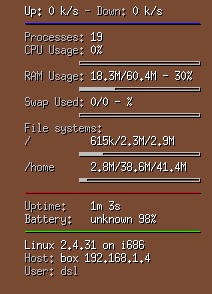
I started with the biggest USP of DSL - only 20 MB RAM usage, CPU usage is also very low to run on Pentium II or older machines.

Overall
I must say that this is by far the lightest distro I have ever used and is unique even in the Linux world. If you have a really really old machine lying in the garage, you can make a fully functional computer with great speed out of it with DSL. Further, there are MySQL apps present in DSL and I guess you can make a server out of the old machine. Kudos to the developers for such a wonderful and amazingly tiny but complete distro.

If you want to see more screenshots, you can visit my Picasa album.


Read more!