Wednesday, August 8, 2012

How to install Android 4.0 ICS in Virtualbox? Step by step installation guide

Finally day before yesterday I managed to install Android ICS with active ethernet and functional play store inside Virtualbox (which is inside Ubuntu 12.04). It took me 3-4 attempts with different ISOs. And to my rescue came the blog Android x86. I am heavily indebted to it, though I tweaked a few things here and there to make it work for me.

From Android 4.0 ICS

To begin, you need to download four things:

1. Virtualbox itself. You can get it from Ubuntu software center or from Virtualbox website. I have 4.1.18 for Linux, you can download for windows or mac as well, depending on your system. And install it.

2. Download the latest Android 4.0 version from Buil Droid. It is the OS which we'll be loading in virtualbox, 109.1 MB in size.

3. Android SDK files - the default android installed without any Play Store or apps. To install apps, you need it installed in your system. You can download it from here. Step by step instructions to install are given in the site itself.

4. Apps by by314 from this deposit files. It has some cool app collection like gmail, google maps, play store, etc. which we'll install in the vanilla android OS which we downloaded in couple of steps before.

Step 1: Once virtualbox is installed and Ova file from Buil Droid is downloaded, double click on the Android-4.0.3_bd2a.ova file. Automatically, it will install itself in virtualbox with predefined settings.

From Android 4.0 ICS

Click import and you'll see Android-4.0.3-bd2 in virtualbox.

From Android 4.0 ICS
Select it and press Enter, Android ICS will start and show you the grub.

From Android 4.0 ICS
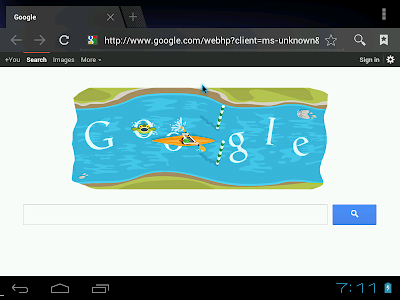
Continue with the second option selected and it will boot Android. You'll see the default Android screen, like the one given below (this is after I changed the black-blue wallpaper and installed a few apps).

From Android 4.0 ICS

Open browser, internet should work. If it doesn't, go to virtualbox, select Android 4.0.3 bd2, click setting -> Network -> select Bridged Adapter as Attached to and wlan0 (if wifi) or eth0 (if your default system internet is through lan cord). Again restart Andriod, internet should work.

From Android 4.0 ICS
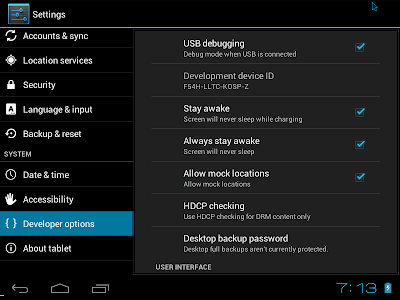
It will vanilla Android. In step 2, we'll install some cool apps along with market/play store. For that, go to Setting -> check about tablet to confirm you've Anroid 4.0.3 and finally go to Developer options -> check USB debugging for the outside system to connect to the Android inside virtualbox.

From Android 4.0 ICS

From Android 4.0 ICS
Step 2: In step 2, unzip (for Linux) install Android SDK to your linux or windows from the file you downloaded earlier. Installation will take a bit of time depending on internet connection. Follow the default instruction link provided in the Android SDK site.

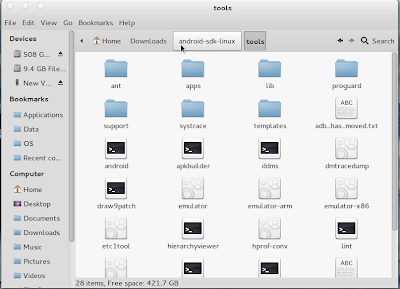
Go inside Android-sdk-linux -> tools folder (for Ubuntu, Windows 7 one is easy, one simple .exe file), and click on Andriod.

From Android 4.0 ICS

From Android 4.0 ICS
Once installed, unzip the apps you had downloaded earlier. It has a folder named gapps_buildroid_modby314 inside. I purposively unzipped it inside ./Home/Arindam/Downloads so that I can access it easily via terminal.

Now open a terminal. Locate the adb file in the Android-sdk-linux -> platform_tools directory.

From Android 4.0 ICS
Another thing which is required is the IP of the Android distro. This is required as well are going to launch a FTP service to push the apps inside Android. I had the advantage of having scores of Linux distros inside my virtualbox and I checked ip configuration on one of them & found it be 192.168.1.4. So, I tried 192.168.1.5 onwards (my actual system has 192.168.1.3) and 192.168.1.6 worked.

To check if it is working, I opened browser inside Android OS running and typed in my system Linux (which is the main OS in my computer) terminal:
arindam@arindam-K55VM:~$ /home/arindam/Downloads/android-sdk-linux/platform-tools/adb connect 192.168.1.6
and it showed "connected to 192.168.1.4:5555". If it is unable to connect, it will show the same. Kind of trial and error method, but I didn't find any other method that worked for me.

Once you're able to connect, type
arindam@arindam-K55VM:~$ /home/arindam/Downloads/android-sdk-linux/platform-tools/adb remount

followed by
arindam@arindam-K55VM:~$ cd ./Downloads/gapps_buildroid_modby314

to move to the directory where your apps are.

And then we'll start pushing the apps by
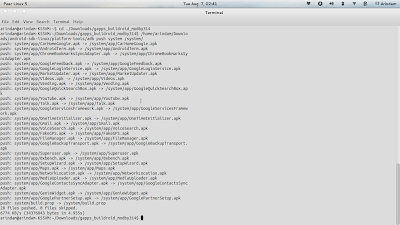
arindam@arindam-K55VM:~/Downloads/gapps_buildroid_modby314$ /home/arindam/Downloads/android-sdk-linux/platform-tools/adb push system /system/

You'll see something of a screen below:

From Android 4.0 ICS
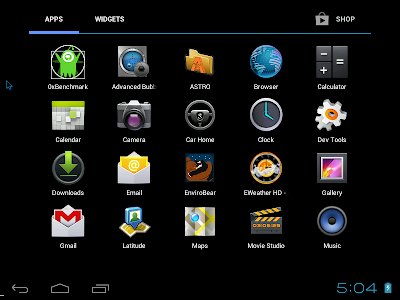
Once complete you'll see all the applications that we pushed inside Andriod. Close the browser that you had opened earlier and check the apps installed, you'll see gmail, playstore, maps, gtalk, etc.

From Android 4.0 ICS

From Android 4.0 ICS
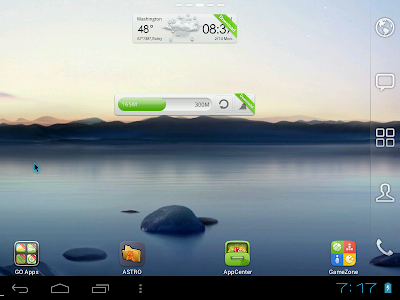
It has superuser & terminal emulator as well. I installed GO Launcher EX from Play Store as well along with other free apps.

From Android 4.0 ICS

From Android 4.0 ICS
However, still this installation has quite a few limitations, like Facebook apk doesn't work with it, neither temple run. I'll do some research on how to make these fun apps work with the laptop installation; if I find something useful, I'll document it in my blog.

Read more!

Sunday, August 5, 2012

Review of Calculate Linux 12: KDE with a twist!

I wanted to try out some Linux distros which are not Fedora or Ubuntu based. So, in came Calculate Linux 12 Desktop version and I liked what they have done with KDE here. The KDE ISO is big (2.3 GB) and I downloaded it from the calculate linux site. Just a day before Calculate Linux, I tried out Scientific Linux - given similarity in names and a large ISO size, my expectations were really high!

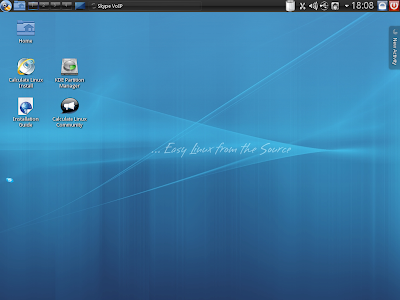
The boot up was quick and unlike Scientific, Calculate didn't require installation. The KDE interface is pleasant and I really liked the Gnome flavor the developers have rendered here.

From Calculate Linux 12

From Calculate Linux 12
Applications
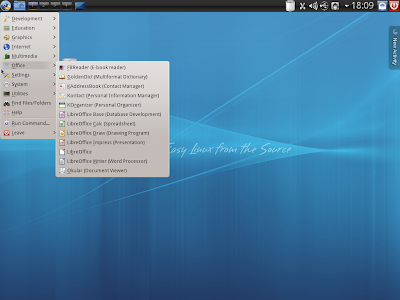
Very rich indeed! Except VLC, I could locate all the applications I need. Even Flash support is out-of-the-box! Amarok (did I tell it is my favorite music player!) & Gnome Media player in Multimedia section, LibreOffice suite & Okular in Office, GIMP 2.8 in Graphics and Chromium & Skype in Internet! I don't know of many Linux distros who provide pre-configured Skype! This is as complete as it gets. In addition, I really liked the Virtual Globe - my 1 year old daughter enjoyed it a lot!


From Calculate Linux 12

From Calculate Linux 12
I really like GIMP 2.8 and it is definitely an improvement (at least in the interface to GIMP 2.6. Calculate is definitely cutting edge!
From Calculate Linux 12

Calculate console is quite simple and easy to operate even for the newbies. 
From Calculate Linux 12

From Calculate Linux 12
CPU & RAM Usage
RAM usage was on the higher side 440 MB, with only System monitor running. CPU usage is around 5-10%. Pretty decent for a KDE desktop.

From Calculate Linux 12
Overall
I definitely recommend Calculate for those who neither like Ubuntu, nor Fedora. It is a pretty stable distro rich in applications and you can download more via the software manager.

A host of screenshots are in my Picasa album. Please visit.

Read more!

Scientific Linux 6.3 Beta 1 Review: Simply outstanding but why on older linux kernel & Gnome shell?


Scientific Linux 6.3 Beta1
I have heard a lot of good words about this distro, though never personally tried it before. So, once I came to know of the release from Distrowatch, I was curious to know and downloaded the 3.5 GB ISO from it's site. It is basically sourced from Red Hat Enterprise Linux and enhanced with extra applications useful for academics, co-developed by Fermi National Accelerator Laboratory and the European Organization for Nuclear Research (CERN). Definitely my expectations of this distro was higher, given the big names attached to it and the size of the ISO.

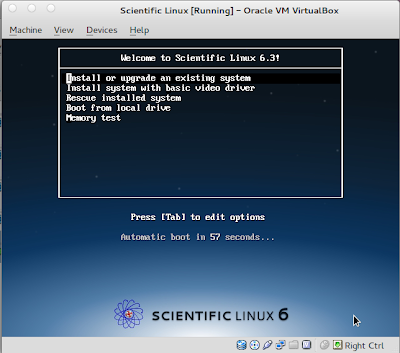
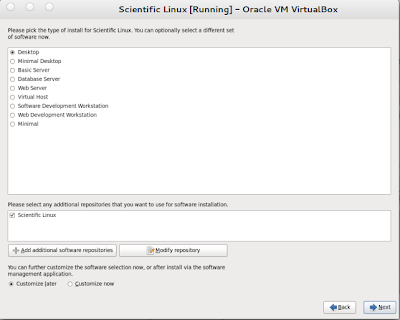
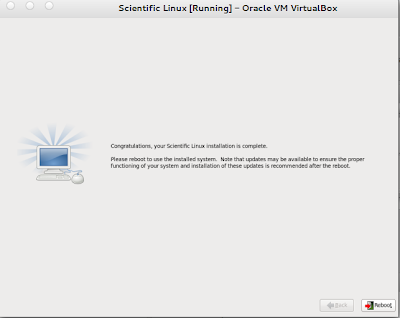
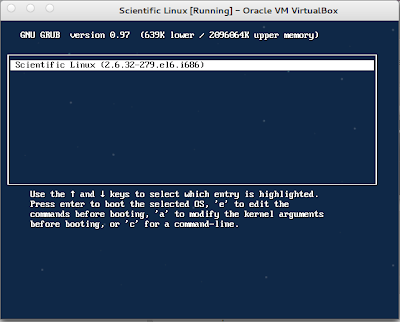
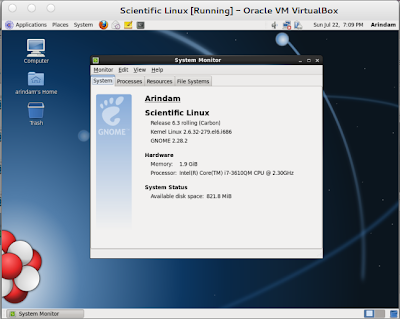
Initially what I did is install it with the default options in virtualbox. Once the installation was over, I was really disappointed by the limited number of apps there and it definitely didn't look very different from another run-of-the-mill linux distro. That too with older Linux and Gnome 2 and not 3! Then I reinstalled it again to give it a second look and there I understood my folly. Scientific Linux is for the advanced users who want to take control of the entire installation process. It gives amazing freedom to the user to customize from a rich source of apps it has within the DVD itself. Even for desktop, it gives you choice of Gnome and KDE at the installation. Below pictures show you step by step installation process.

From Scientific Linux 6.3 Beta 1

From Scientific Linux 6.3 Beta 1

From Scientific Linux 6.3 Beta 1

From Scientific Linux 6.3 Beta 1

From Scientific Linux 6.3 Beta 1

From Scientific Linux 6.3 Beta 1

From Scientific Linux 6.3 Beta 1

From Scientific Linux 6.3 Beta 1

From Scientific Linux 6.3 Beta 1

From Scientific Linux 6.3 Beta 1

From Scientific Linux 6.3 Beta 1

From Scientific Linux 6.3 Beta 1

From Scientific Linux 6.3 Beta 1

From Scientific Linux 6.3 Beta 1

From Scientific Linux 6.3 Beta 1

From Scientific Linux 6.3 Beta 1
So, you see while installing only you can have the most complete Linux Distro without downloading a single MB, apart from the distro DVD itself. Application-wise, I doubt I have seen any other Linux OS match it. Also, installation process doesn't take much time as well.

It is a great Linux distro for those academically oriented and into research. Scientific Linux supports R and other linux based softwares for statistical computing. I am a big user of R for my professional needs and definitely welcome this distro.

However, for a cutting edge distro like Scientific, my only concern is why it has Linux 2.6 kernel? And why Gnome 2 and not Mate or Cinnamon? Older kernel means it will be difficult to install the cutting edge apps like VLC 2, GIMP 2.8, Firefox 14+, etc. due to unresolved dependencies.

From Scientific Linux 6.3 Beta 1
CPU & RAM Usage
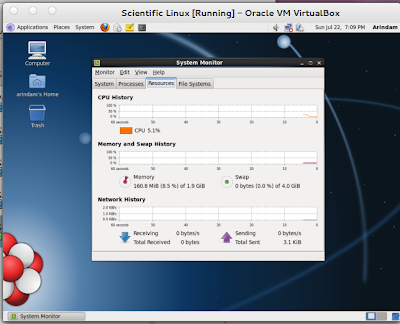
Due to older kernel and Gnome 2, obviously the RAM usage is on the lower side (160 MB). I still like Gnome 2 over 3 due to its less resource consumption.

From Scientific Linux 6.3 Beta 1
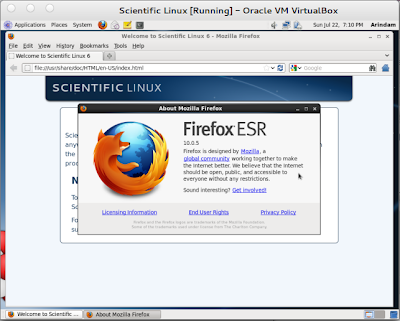
One bright thing with this distro is a more secured Firefox 10 ESR.

From Scientific Linux 6.3 Beta 1
Overall
I really liked Scientific Linux 6.3 - it's definitely meant for power users. Further, it has full support till Q2 2017 and maintenance support till Nov-2020! Once you install it, you can live in peace of not replacing the distro every year for quite sometime. Given it is less resource consuming, even the P4 computers would support it. Also, it is Gnome 2 based and definitely more customizable, you can surely tweak it to look like a Mac or a Windows 7 or any other look that you prefer, if you don't like the plain vanilla look. I am eagerly waiting for the final release.

You can see more screenshots in my Picasa album.


Read more!

Saturday, August 4, 2012

Kororaa 17: User-friendly KDE spin of Fedora 17

I really liked Fedora though it feels a bit geekier than Ubuntu. Ubuntu is absolutely more user-friendly and you don't need to be a Linux expert to use it. But, Kororaa changed my view - it is definitely user friendly and offers a more complete out-of-the-box distro than Fedora with the usual smoothness that characterizes Fedora.


From Distrowatch, I came to know of the latest release and downloaded Kororaa 17 from its site. KDE is my preferred option and the ISO was 1.6 GB - quite big indeed for Linux!

The boot up was quick and easy and I was greeted with a nice blue-black interface - similar to Fedora 17. The desktop is typical KDE.

From Kororaa 17

From Kororaa 17

From Kororaa 17

Applications
What strike me most in Kororaa is the prudent selection of very utility apps. It is rich with most of the apps that you may need on daily basis like  GIMP, PDF viewer (Okular), Photo management program, E-book viewer, Firefox, bit-torrent, blogging client, micro-blogging client (similar to Gwibber), VoIP Phone, VLC Player, Amarok music player, sound editor, video editor, LibreOffice suite and of course, Yum to download and manage apps. Overall, a very comprehensive and great package. Only wish, Flash support would have made it 100% complete.

From Kororaa 17

From Kororaa 17
From Kororaa 17

CPU & RAM Usage
Kororaa has significantly lower RAM usage (285 MB, with only system manager running) than Fedora 17 or Ubuntu 12.04 LTS. So, kudos to the developers for getting things right. CPU usage is also modest, 5-6%.

From Kororaa 17

Overall
I liked Kororaa 17, except for a difficult name, I guess. The OS feels very stable and a good KDE spin. App-wise very rich and you may not need to download a whole lot of apps after installing Kororaa. The feel of using it is also smooth and thanks to the developers for giving a refined distro - I liked it better than Kubuntu for sure.

A few screenshots are in my Picasa album - you may like them.


Read more!

LuninuX OS 12 LTS: Mac flavored Ubuntu For those who hate Unity!

What I like about Linux is the plethora of options available to choose your favorite distro. Say, if you hate Unity, but love the stability and abundance of apps in Ubuntu Precise, Luninux 12 can be a very good option for you along with Pinguy OS, Bodhi, Pear OS 5 among other and of course, Linux Mint Maya!

Luninux 12 32-bit ISO is slightly on the heavier side (~1.3 GB) and I downloaded it from Sourceforge. A quick boot up in Virtualbox and I was greeted with a blue screen with just "Ubuntu" written on it. Though I know that it is a Ubuntu derivative, but still developers should have cared to polish the boot up screen. Pear OS 5, another Mac-flavored Ubuntu, has Pear Linux logo and name at the boot splash.

From LuninuXOS 12 LTS
Desktop & Interface
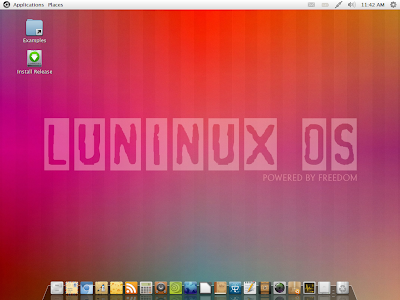
I was glad to see, however, that the developers have really put a good work on the desktop interface. Smart and polished! And of course, is similar to Mac with a docky.

From LuninuXOS 12 LTS
Applications
It is rich, indeed, in terms of coverage. Almost all major apps are there, like LibreOffice, MPlayer, Chromium, Thuderbird, GIMP, Bit-torrent, drop-box, Cheese, etc. Notable app absent are Skype, VLC, Adobe Flash plugin to name a few. One thing I really liked is that the developers have renamed the apps though the app icon is the same. Like Chromium is renamed as "Internet Explorer" and likewise, Cheese as Photo Booth, and Gimp is Photo Editor. By default Wine & PlayonLinux are provided which will definitely make users happy, if they want to install MSOffice 2010 and other Windows specific apps.

From LuninuXOS 12 LTS

From LuninuXOS 12 LTS

CPU & RAM Usage
RAM usage is significantly lower in LuninuX, compared to Ubuntu 12.04. With only system manager running, CPU usage was 4-10% & RAM usage ~ 250 MB. I haven't seen many Gnome 3 based distros using lower RAM than Luninux.

From LuninuXOS 12 LTS

From LuninuXOS 12 LTS
Overall
I found LuninuX quite good and it appears to be a very stable and low resource hungry distro. If you like Gnome over other desktops and prefer to use Docky, then LuninuX is definitely recommended for you though there are some caveats like no Firefox, no Flash out-of-the-box, no VLC. A lot of Ubuntu derivatives like Mint, Pinguy, Pear, etc. provide these out-of-the-box. Luninux is good but Pear OS 5 still is the best of the Mac-Flavored Ubuntu derivatives.

Some screenshots that I took are uploaded in my Picasa album.


Read more!