Monday, October 22, 2012

Xubuntu 12.10 Review: A shinier and more attractive desktop!

Third in the series of Quantal Quetzal releases, is Xubuntu 12.10 after Ubuntu and Kubuntu. Like Kubuntu, Xubuntu also didn't have many significant changes in the new release from the LTS version. The same cannot be said about Ubuntu which did get some new functionalities like web apps, better social integration, etc. These are not there in Xubuntu, Kubuntu or a Lubuntu.
From Ubuntu 12.10 Comparison

XFCE, as a desktop, is growing on me primarily because it didn't undergo any major makeover in recent times, making it consistent to use for the users as well as for it's stability and being less resource intensive. The CPU and RAM utilizations are significantly lower for a XFCE desktop compared to a Gnome or a KDE desktop. 


From Ubuntu 12.10 Comparison
To those who are new to Xubuntu, it is a lightweight XFCE desktop environment based distro from the Ubuntu stable which offers the users a complete operating system with a range of useful applications. Further, since users can access the application rich Ubuntu repositories, there are plenty of applications like Skype, VLC, virtualbox, Firefox, Opera, PlayonLinux, etc. that can be downloaded and installed in Xubuntu. By default, the Xubuntu 12.10 ISO boots up with the following default applications:
  • Graphics: gthumb, Ristretto image viewer, and simple scan
  • Internet: Firefox browser, Thunderbird mail, Pidgin IM, Bittorrent client, and Xchat IRC
  • Multimedia: gmusicbrowser, parole video player, Xfburn CD burner (audio/video CDs)
  • Office: Abiword document maker, Gnumeric spreadsheet, document viewer to view pdf, comics archive, etc., Orage calendar
  • Accessories: Calculator, Archive manager, Leafpad (notepad), Catfish file search,  screenshot, etc. 
 
I booted up both 12.10 and 12.04.1 on my Asus K54C laptop with 2.2 GHz Intel 2nd Gen Ci3 processor and 2 GB DDR3 RAM. Post initial live boot, I installed them on the same machine, to check and compare individual performances. High level results are given below:

High Level Results

At a high level, the two distros don't look significantly different from each other and expectedly so. They are just six months apart. However, Xubuntu 12.10 has the latest applications and repository, with updated Firefox, Thunderbird among others.


Parameters Xubuntu 12.10 Xubuntu 12.04.1 LTS
Size of ISO 727 MB 715 MB
Booting time (post installation) 8 sec 10 sec
Desktop XFCE 4.10 XFCE 4.8
Linux kernel 3.5.0-17 3.2.0-29
CPU usage (live boot) 1-5% 2-6%
RAM usage (live boot) 180 MB 220 MB
CPU Usage (post installation) 1-5% 1-5%
RAM usage (post installation) 160 MB 160 MB
Installation time (with 1 MBPS connection) 30 min. 30 min.
Wifi detection Immediate Immediate
Touchpad detection Works by default Works by default
Ease of use Really smooth to use Really smooth to use
Eye candy factor Interface is brighter and looks better than ever Somehow dark in looks & not very bright
Repository Ubuntu Software Center 5.4.1.2 Ubuntu Software Center 5.2.5
File Manager Thunar 1.4 Thunar 1.2.3

Another signficant improvement is in the art work. Xubuntu 12.10 looks much brighter and aesthetically more pleasing. But, the resource efficiency is not compromised as evident from the performance in the table given above. Xubuntu 12.10 works as good as Xubuntu 12.04.1 and looks much better. It continues to be fast and responsive, and giving a highly functional desktop.

Incremental changes

Apart from updated XFCE, Linux kernel and applications, rest of the incremental changes are similar to Kubuntu, namely:

  • New Grub2 menu, to work on secured UEFI login of the Windows 8 systems. Xubuntu Precise with the older grub won't be able to work there.
  • Migration-assistant removed: The tool responsible for migration of user profiles from existing operating system(s) is no longer part of Quantal
  • Python 3: Still, Python 2 is supported. 
  • No OpenJDK6: Now Ubuntu has totally moved to OpenJDK7 as the default Java implementation.
  • In the application menu, all settings-related launchers are now grouped under the Settings Manager
  • From Ubuntu 12.10 Comparison
  • Completely rewritten offline documentation
  • Catfish search engine, has been updated to version 0.4.0.2
  • Parole, media player, has moved to new upstream version 0.3.0.3
  • gThumb, image viewer and browser, has moved to version 3.0.1 
So, net-net, no significant change between Xubuntu Precise and Quantal. Both work admirably well on my laptop and I get a high level of performance from both

So, Quantal or Precise?

Unlike Ubuntu or Kubuntu, here I'll go in favor of upgrading to Xubuntu 12.10. The support for Xubuntu Precise is for 3 years and not 5 years as you get with Ubuntu or Kubuntu; hence, possibly you don't lose much if you upgrade. Further, my decision is based on refined art work, ability to work in systems with Windows 8 and Microsoft's much maligned secured boot, latest applications available in the repository, option of adding Ubuntu web apps ppa's among others. And perhaps, I would wait for the Linux MInt 14 XFCE to come out as well before upgrading! My 2 cents.

Read more!

Sunday, October 21, 2012

Kubuntu 12.10 Review: Is Quantal Quetzal significantly better than Precise Pangolin?

After comparing between Ubuntu 12.10 and 12.04.1, where the verdict was mixed, next in line is Kubuntu. Like Gnome 3 shell, even KDE is going through a lot of transformation and users are bearing brunt of it. KDE 4.8.5 actually made me prefer XFCE as my primary desktop. However, KDE 4.9.2, I heard, has fixed a lot of the previous bugs and instability. KDE as a desktop is, possibly, the closest to Windows 7, offering similar looks and menu as well as previews as in the Microsoft OS. The changes in KDE have been incremental and it has retained the same look and feel, unlike Gnome, where even the look and feel have changed!


From Ubuntu 12.10 Comparison
I am comparing here the latest Quantal release with the Kubuntu Precise 12.04.1 LTS release, both 32 bit. Also, point to be considered here is that both releases are just 6 months apart. So, I wasn't expecting anything radically different between the two, but just a few incremental innovations.

High Level Comparison

Kubuntu Quantal Quetzal comes with the improved KDE 4.9.2 shell and Ubuntu Linux kernel of 3.5.0-17 (based on v3.5.5 upstream Linux kernel). Quantal is the first release to support the UEFI secure boot (in Windows 8) to enable dual boot even there. This means a new Grub2 boot loader.

Kubuntu 12.04.1 ISO (738 MB) is a bit lighter than Kubuntu 12.10 ISO (1000 MB). I booted up both of them on my Asus K54C laptop with 2.2 GHz Intel 2nd Gen Ci3 processor and 2 GB DDR3 RAM. Look and feel wise both the distros seem identical. A high level comparison of Quantal and Precise is given in tabular form below:


Parameters Kubuntu 12.10 Kubuntu 12.04.1 LTS
Size of ISO 999.6 MB 738 MB
Booting time (post installation) 10 sec 12 sec
Desktop KDE 4.9.2 KDE 4.8.4
Linux kernel 3.5.0-17 3.2.0-29
CPU usage (live boot) 2-6% 2-6%
RAM usage (live boot) 270 MB 250 MB
CPU Usage (post installation) 2-10% 2-10%
RAM usage (post installation) 300 MB 310 MB
Installation time (with 1 MBPS connection) 30 min. 30 min.
Wifi detection Immediate Immediate
Touchpad detection Works by default Works by default
Ease of use Works well on the system Works well with the system
Eye candy factor Plasma interface looks good Plasma interface looks good
Repository Muon Package Manager 1.4.1 Muon Package Manager 1.3.1
File Manager Dolphin 2.1 Dolphin 2

From Ubuntu 12.10 Comparison
At a high level, both the distros look very similar and behave similarly. Except that Kubuntu 12.10 has more upgraded applications. I used both of them on the same day and didn't note any significant difference in performance, to be honest. For Ubuntu, I noted that Quantal is a bit slower than Precise, but that is not the case with Kubuntu. Both of them do the job equally well - work out of the box and very smooth to use.

Incremental changes

Of course, apart from whatever listed in the table above, there are certain other incremental changes, though not as significant as Ubuntu. 
  • Login screen has changed a bit, it now looks better and picks up the username automatically. No need of username manual input like Kubuntu 12.04.1.
  • From Ubuntu 12.10 Comparison
  • Calligra Applications include Kexi for desktop DBMS solutions and Krita for painting.
  • LibreOffice has been upgraded to Version 3.6.2.2.
  • From Ubuntu 12.10 Comparison
  • KDE Telepathy has been upgraded to Version 0.5.1, replacing the Kopete Instant Messenger.
  • Rekonq has been upgraded to Version 1.1.
  • Amarok has been upgraded to Version 2.6.0.
  • OwnCloud has been upgraded to Version 4 with a host of new features including shared calendars, easier sharing of files and a more shiny photo gallery. New in this release is owncloud-client, a desktop app to sync your folders to your OwnCloud.
  • New Grub2 menu, as mentioned above.
  • Migration-assistant removed: The tool responsible for migration of user profiles from existing operating system(s) is no longer part of Quantal
  • Python 3: Still, Python 2 is supported. 
  • No OpenJDK6: Now Ubuntu has totally moved to OpenJDK7 as the default Java implementation.
So, Quantal or Precise?

Now the question is, does it inspire users to leave 12.04, which is an LTS, and upgrade to 12.10? Unlike Ubuntu 12.10, where I find a better integration of social networks through web apps, Kubuntu 12.10 doesn't offer incremental benefits of upgrading to the same extent.

In my opinion, both perform equally well on the same machine. I really like way KDE desktop looks and feels like. Definitely KDE is a good option for those who hate either Unity or Gnome 3, and possibly KDE 4.9.2 got the bugs fixed. I used Kubuntu 12.10 for a couple of days and didn't note anything crashing.

For me, if I have to install in a system powered by Windows 8, I would definitely go for a Kubuntu 12.10. However, if it is a legacy XP or Windows 7 laptop, possibly I would stick to Kubuntu 12.04.1 with long term support given there are no significant differences between the two distro. Upgrading any Ubuntu installation is really painful and most of the time leaves broken packages. It is easier to install a new release and start afresh. So, as I don't use any Windows 8 laptop, my choice is right now Kubuntu 12.04.1 LTS! 

Read more!

Saturday, October 20, 2012

Ubuntu 12.10 Review: Is Quantal Quetzal better than Ubuntu 12.04 LTS?

As it happens with every new release of Ubuntu, it is compared to the last release. And if the last release is an LTS, a comparison is definitely required to answer - is the new release good enough to motivate users leave the long term support version and embrace the latest one? My current review is focused on the same question.
From Ubuntu 12.10 Comparison
I am comparing here the latest Quantal release with the Ubuntu Precise 12.04.1 LTS release, both 32 bit. Also, point to be considered here is that both releases are just 6 months apart. So, I wasn't expecting anything radically different between the two, but just a few incremental innovations.

High level comparison

 
Ubuntu 12.04.1 ISO (730 MB) is a bit lighter than Ubuntu 12.10 ISO (790 MB). I booted up both of them on my Asus K54C laptop with 2.2 GHz Intel 2nd Gen Ci3 processor and 2 GB DDR3 RAM.
Look and feel wise both the distros seem identical. A high level comparison of Quantal and Precise is given in tabular form below:

Parameters Ubuntu 12.10 Ubuntu 12.04.1 LTS
Size of ISO 790 MB 730 MB
Booting time (post installation) 9 sec 15 sec
Desktop Unity with Gnome 3.6 Unity with Gnome 3.4
Linux kernel 3.5.0-17 3.2.0-29
CPU usage (live boot) 20-30% 4-15%
RAM usage (live boot) 456 MB 310 MB
CPU Usage (post installation) 20-30% 5-20%
RAM usage (post installation) 412 MB 280 MB
Installation time (with 1 MBPS connection) 30 min. 30 min.
Wifi detection Immediate Immediate
Touchpad detection Works by default Works by default
Ease of use A bit on the slower side Is actually faster than Quantal
Eye candy factor Looks awesome! Looks awesome
Repository Ubuntu Software Center 5.4.1.2 Ubuntu Software Center 5.2.5
File Manager Nautilus 3.4.2 Nautilus 3.4.2

So, net-net, Quantal has a faster booting time, Unity 6.8 interface actually loads faster than the older (5.2?) Unity interface. Unity seems more refined and a lot more stable in Quantal than Precise. Linux kernel and Gnome shell, too, are upgraded to the latest available release. But, Nautilus is not! It is the same 3.4.2 though 3.6 is available! Possibly Nautilus 3.6, widely disliked, didn't gel well with the Unity interface and hence, developers decided to retain 3.4 version. However, all these upgrades come at a cost - significantly higher resource utilization! Precise is a lot more lighter and less taxing on resources than Quantal. Personally, I felt Precise is a bit faster than Quantal - though you won't feel the difference if you are using a high end machine. Installation process is pretty much the same and takes the same amount of time - no change there!

Application-wise both are pretty similar - only Quantal has all latest versions of the same applications that Precise has, namely: Firefox 16.01, LibreOffice 3.6.2, and Thunderbird 16.01. For movies, Ubuntu is using Totem; for photography, it's Shotwell; and for music, it's Rhythmbox. Anyway, Firefox and Thunderbird upgrades are possibly not that significant as they are upgraded separately to the latest available version irrespective of which Ubuntu release you are using! So, no big change there in. 

Incremental changes

Apart from differences in the Gnome, Linux and application versions, Quantal brings in one major change and a few subtle changes from Precise.

Major changes:

New "Web Apps": These are applets that connect the local operating system to web and cloud content. In addition to providing online results to search content, these can add webmail and social networking notifications to Ubuntu's mail menu. Now this search is integrated to Dash and you can see the results I got when I searched for Justin Timberlake songs in my computer. In addition to what was there in my system, it gave me results from Ubuntu music store and Amazon as well.


From Ubuntu 12.10 Comparison

Web apps are currently offered for 40 sites like Amazon, Facebook, Twitter, etc. and can be installed by accessing the websites in Firefox and accepting the automatic installation request. By default, Ubuntu 12.10 has the following web apps:
  • Amazon app: I won't call it an app, it is merely a bookmark on the Unity sidebar. Once you click it, it will open Amazon.com site in Firefox browser.
From Ubuntu 12.10 Comparison
  • Ubuntu Music Store: Again similar to Unity one and Amazon bookmarks, Ubuntu music store is integrated to the Unity sidebar to be accessed through Firefox. Its content is rich and I could search a lot of Indian artists as well including the legends like Kishore Kumar. Similarly, popular social networks like Facebook and Twitter can also be saved on Unity sidebar as bookmarks.


From Ubuntu 12.10 Comparison
Minor changes
  • Online integration of social network and email: In Quantal, Ubuntu achieves a lot more integration of social and email networks with a single point of sign in. 
From Ubuntu 12.10 Comparison
 
  • Preview mode: Once you right click an application icon on dash, it takes you to preview mode. Currently it looks like at work in progress phase and doesn't offer much!
  • New Grub2 boot loader: This is specifically designed for Windows 8 OS, which has UEFI secure boot feature that doesn't allow dual boot with any other OS. Hence, if you are already tired of Windows 8 Metro interface and want to install a Linux OS alongside, you'll need to install Quantal; Precise won't work on your system!
  • Remote Desktop Protocol: It's a new feature and allows users to set up a RDP account to access any remote machine added to the account. Very good, but hardly any use for me at this point in time.
  • No Unity 2D: Till Precise, there was an option of Unity 2D for machines with limited resources. Now, it has been dropped.
  • Python 3: Still, Python 2 is supported.
  • New Dash photo lens along with the already existing music and video lens and Gwibber lens, with a changed Gwibber icon.
From Ubuntu 12.10 Comparison
  • LVM support: Now you can install in a logical volume and increase its size, if required, without needing to reinstall the entire system again.
Does this new features and upgraded applications justify an upgrade?

Well, honestly I don't care about the upgraded applications, I can add quantal ppa's and install them in Ubuntu 12.04.1 LTS. Already I added GIMP 2.8 and planning to add LibreOffice 3.6. So, the question boils down to the incremental features like web apps, LVM support, RBP, Python 3, etc. I used them quite for last two days and in my opinion, Ubuntu 12.10 integrates social media much more than its predecessors. Of course, preview and dash lens are promising and can potentially integrate my system to web in a much better way in future. Unity is much better and smoother to use in Quantal. Unity is getting good with every release but it remains inflexible as ever - you simply can't change the looks! 

So, based on all these facts and numbers that I gave above, it depends on users taste whether s(he) would like to upgrade or not. Definitely Quantal has some significant improvements, especially in social network integration and web apps, over Precise and is graphically more appealing. However, there are some drawbacks as well like too much of Amazon, more resource consumption, a bit slower than Precise, among others.

Personally, I feel all of these incremental innovations as work in progress for bigger things to come in future. I'll wait for the future and give Ubuntu 12.10 a miss for now, sticking to Ubuntu 12.04.1 LTS. We'll see where it goes possibly in 13.04 or 13.10.

Read more!

Friday, October 19, 2012

Ubuntu 12.10 Vs Kubuntu 12.10 Vs Xubuntu 12.10 Vs Lubuntu 12.10: A comparison

Yesterday I succeeded in downloading all four of these distros - Big daddy Ubuntu and its progenies Kubuntu, Xubuntu and Lubuntu. I did a live boot of all 4 on my Asus K54C laptop with 2.2 GHz Intel 2nd Gen Ci3 processor and 2 GB DDR3 RAM and later installed on the same, one after another to check out the performances, applications and other features associated with each one of these operating systems.

From Ubuntu 12.10 Comparison

 I downloaded 32 bit ISO for each one of these distros from the respective sites. All are compatible to Unetbootin and hence, preparing live usb wasn't an issue. For installation I preferred the full installation mode with internet on and in process downloading updates as well as multimedia codecs. Hence, each installation took about half an hour to get started for the review and comparison.

From Ubuntu 12.10 Comparison

Comparison


Parameters Ubuntu 12.10 Kubuntu 12.10 Xubuntu 12.10 Lubuntu 12.10
Size of ISO 790 MB 999.6 MB 727 MB 726 MB
Booting time (post installation) 9 sec 10 sec 8 sec 8 sec
Desktop Unity with Gnome 3.6 KDE 4.9.2 XFCE 4.10 LXDE
Linux kernel 3.5.0-17 3.5.0-17 3.5.0-17 3.5.0-17
CPU usage (live boot) 20-30% 2-6% 1-5% 1-5%
RAM usage (live boot) 456 MB 270 MB 180 MB 134 MB
CPU Usage (post installation) 1-10% 2-10% 1-5% 0-5%
RAM usage (post installation) 412 MB 300 MB 160 MB 123 MB
Installation time (with 1 MBPS connection) 30 min. 30 min. 30 min. 30 min.
Wifi detection Immediate Immediate Immediate Immediate
Touchpad detection Works by default Works by default Works by default Works by default
Ease of use A bit on the slower side Works well on the system Really smooth to use Really smooth to use
Eye candy factor Looks awesome! Plasma interface looks good Interface is brighter and looks better than ever Interface looks more or less the same, a bit bland
Repository Ubuntu Software Center 5.4.1.2 Muon Package Manager 1.4.1 Ubuntu Software Center 5.4.1.2 Lubuntu Software Center
File Manager Nautilus 3.4.2 Dolphin 2.1 Thunar 1.4 PCManFM 1.0.1
Stability Hanged while playing video in Gnome MPlayer CPU utilization 100% while playing video in Dragon Player; but didn't hang 20% CPU utilization while playing video in VLC 14% CPU usage while playing video in Gnome MPlayer

I'll cover each distro in their respective reviews. 


Results
 
In nutshell, I see all the 4 Ubuntu distros have the latest softwares to offer along with the most up-to-date Linux kernel and desktop shell. Like last time, Lubuntu and Xubuntu performs way better than Ubuntu or Kubuntu. However, look-wise Lubuntu is more on the blander side. If you are in a habit of flaunting eye candy Linux desktops to friends and buddies, perhaps Lubuntu is not for you. However, those who appreciate productivity over anything else, an LXDE Linux OS is perhaps better suited to them.

From Ubuntu 12.10 Comparison

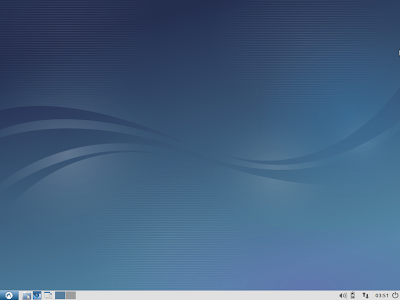
Xubuntu, however, has come a long way from being bland looking distro. Now it is shinier and looks better than other Xubuntu predecessors. Resource consumption-wise, it is just behind Lubuntu. Both desktop and applications contained are the cutting edge ones.

From Ubuntu 12.10 Comparison

Conclusion

 Kubuntu lies somewhere intermediate between Xubuntu/Lubuntu and Ubuntu. It has the updated KDE 4.9.2 desktop. I used it for sometime, it feels smoother to use than 12.04. Though CPU utilization fluctuates and often touches 100% but it never hangs. Even while playing a movie, though CPU utilization was near 100%, it kept on running and I did a small amount of multi-tasking as well.

Coming on to Ubuntu 12.10. I tried it on Core i3 laptop with 2 GB RAM and it hanged while playing a movie! I felt it is on the slower side and especially if you are using Ubuntu after using a Lubuntu/Xubuntu, you can feel the pain much more. However, looks wise, Ubuntu is miles ahead of the rest three. Unity is smoother to use and Gnome shell is 3.6. Further, Amazon and Ubuntu music are added plus point. Initially, I thought they would be apps, but both open in Firefox upon clicking! Even I could set Facebook and Twitter on the left hand side Unity bar for quicker access. It is like creating bookmarks to open in Firefox and nothing else.

So, if you have a really high end laptop, then only think of installing Ubuntu. Otherwise go with my personal favorite Xubuntu or Lubuntu! In next few articles, I'll take up each individual distros and compare them with the last release 12.04.

Read more!

Thursday, October 18, 2012

Snowlinux 3.1 Review: Now Crystal got even better!

Last month, during my experiments with Linux distros, I mentioned that on Snowlinux 3 Crystal, touchpad doesn't work. Even I couldn't get the touchpad settings on my Asus Eee-PC 1101HA. Possibly, the developers too noted the same and last week, the updated Snowlinux 3.1 with touchpad support got released. I did a live-boot on my Asus K54C laptop with 2.4 GHz Intel 2nd Gen Ci3 processor and 2 GB DDR3 RAM and later installed on the same.

From Snowlinux 3.1

Like Snowlinux Crystal, the release is in three flavors - Gnome 2, XFCE and E17. I downloaded the Gnome 813MB 32-bit ISO from the hosting site. Pretty much the desktop is similar to Snowlinux 3 and looks simple and elegant. It is built on Debian squeeze and is lighter on resources. Snowlinux makes a mix of Gnome 2.30.2 shell with Linux kernel 3.2.0, and it is the same as the Crystal release.

Applications

Applications haven't changed a bit from the last release. As I mentioned last time, applications seem to be judiciously chosen - You get a LibreOffice suite, Firefox, Thunderbird 14, bit-torrent client, a video player (gnome media player), Rhythmbox, Basero, Empathy etc. Most of desired apps are there and you can download apps like VLC, Chrome, Pidgin, GIMP, etc. from the Debian repository, through either the graphical software center or synaptic package manager. Adobe flash support is not by default but you can get flash player from the repository.


CPU and RAM Usage

CPU and RAM usage continue to be low - even now, at idle state, it used 1-5% CPU and 110-120 MB RAM with system monitor running! It explains why I still like Gnome 2 desktop over Gnome 3! Gnome 3 hogs resources like anything.

From Snowlinux 3.1
Disappointments

LibreOffice suite is 3.5 - I expected 3.6 upgrade in this update. Even GIMP in the repository is 2.6 and not 2.8! A bit disappointed for sure. However, I guess, we can install LibreOffice 3.6 and GIMP 2.8 downloading the .deb installation files from the respective websites. Some dependency issues might be there, of course. I'll update on this by next week.

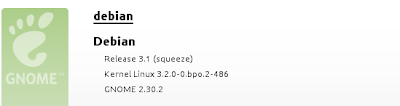
Also, last time the System Monitor showed Snowlinux Crystal as the distro name. Now it is showing all Debian Squeeze! Another disappointment!

From Snowlinux 3.1

Touchpad - finally working!

But, what makes up for my disappointment is that now the touchpad has started working. Single tap, double tap, vertical scroll and horizontal scroll - all works perfectly once the I changed the touchpad settings. Definitely a welcome update. Now I guess, it can be one of my primary operating systems!

From Snowlinux 3.1
From Snowlinux 3.1
Installation

Installation is pretty straight forward - select Language, Keyboard config, timezone, hard drive where you want to install and that's it! It takes 10 minutes to install Snowlinux and is one of the easiest I have seen. So, no issues here and things work out-of-the-box for Snowlinux!

Overall

With the touchpad working, definitely Snowlinux 3.1 is a better upgrade. There are let downs in terms of latest updated versions of apps and fine tuning the distro. But, in overall, this Snowlinux upgrade is really good. Gnome 2 desktop is light on resources, at the same time, being great in speed and customization. With majority of the distros moving to Gnome 3 shell in spite of all its instability and short comings, Snowlinux is still resisting the temptation. It is sticking to the tried and tested Gnome 2 shell, which is commendable. Interesting point is what Snowlinux will do when Debian stable moves to wheezy and Gnome 3 is still unstable - whether it will be still Gnome 2? Only time will tell.

Read more!
Monday, October 15, 2012

Slackel 14.0: Slackware 14 further simplified!

I tried using Slackware, 5 years back, when my Linux experience was still at infancy. I remember looking for a Linux distro to install and downloaded Slackware - but had a nightmare installing it and making it work! However, one of the oldest Linux distros, Slackware (now nearly 20 years old, I guess), has come a long way with the latest release, 14.0. It is definitely much easier to use than its predecessors! Definitely not a Ubuntu or Fedora, but still user-friendly and newbies can actually now get their hands dirty with Slackware 14.0.

Now coming onto the spin of Slackware current, Slackel 14 - does it make using and installing Slackware easier? It is a distro developed by Dmitris Tzemos, having KDE 4.8.5 and Linux kernel 3.2.29 with a bundle of KDE centric software. KDE 4.8.4 had several bugs but a lot of these are fixed in KDE 4.8.5. Though it is not the latest one as 4.9.2 just got released this month!


From Slackel 14.0
I downloaded the 32-bit live image (1 GB in size) from Sourceforge. I did a live-boot on my Asus K54C laptop with 2.2 GHz Intel 2nd Gen Ci3 processor and 2 GB DDR3 RAM. The desktop is really attractive with a crop-field picture and a docky styled KDE menu bar. The root password for the live CD is “live”. Standard user login is “one” with no password.

However, the live-boot is not as smooth as a Ubuntu or a Fedora. I had to hit Ctrl+D, I guess, no less than 4-5 times to get the GUI started. Network configuration was easy and it immediately scanned my wifi hub along with other surrounding wifi networks available. Display was proper, it detected my sound card and other configurations well though my touchpad wasn't working properly. No horizontal or vertical scroll enabled. Even the mouse configuration doesn't have a touchpad settings option.

Applications
Slackel 14 is rich in applications, though mostly KDE centric. Internet section is perhaps the richest with Firefox 16, Pidgin, KDE blogging client, Bit torrent client, KGet download manager, Akregator feed reader, KNode news reader, desktop sharing, FTP tools, etc. It is pretty exhaustive list undoubtedly!

Multimedia section is good with Clementine as the default audio player and Bangarang as the default video player. Mul timedia codecs are not present in the ISO by default but there is a menu entry to download them.

Default Office application is Calligra Office 2.4.3. I guess, Calligra 2.5.2 is just recently out with all the bug fixes from Calligra 2.5.1. I haven't used Calligra Office, I prefer LibreOffice suite. However, just on face-value LibreOffice seems a better option, possibly because of my familiarity with it. You can download LibreOffice suite from GSlapt package manager.

This distribution uses Salix's graphical system tool and also utilize slapt-get and GSlapt as their package management besides the traditional pkgtools. It's like a combination of Slackware and Salix to provide a stable and easy to use Linux distribution.


From Slackel 14.0
Overall, application-wise, Slackel is complete in my opinion and has a variety of KDE centric apps. I saw the Slackware repository, it is no Ubuntu or Debian and doesn't have Skype, virtualbox, wine or playonlinux, bumblebee to make Nvidia work, etc. though most common applications (like Chrome, LibreOffice, etc.) are there. Restricted codecs, adobe flash needs to be installed to make it fully functional, but java is already there.

Installation
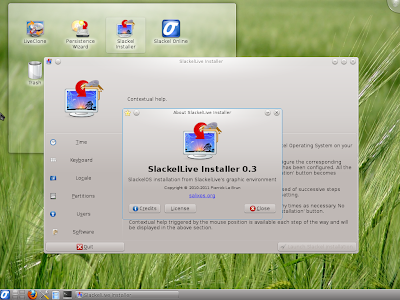
SlackelLive Installer 0.3 is quite simple, you just select time, keyboard settings, location, partition where you want to install, users and software (core, basic or full, I selected full), within 2-3 minutes installation is complete! It doesn't download a lot of updates or codecs while installation. But, you may need to install the codecs or flash post installation.
From Slackel 14.0


From Slackel 14.0
I ran into trouble while partitioning the hard drive. Gparted won't start showing error "Cannot execute the command '/usr/sbin/gparted'". I searched for a dependency of gparted not being mate and got that atkmm should be there for gparted to function properly. A quick download from GSlapt and Gparted actually started working post download. So, what I felt is possibly complete UAT hasn't been done for the distro - this is a bug which could have been easily avoided.
From Slackel 14.0

Post installation, the distro actually worked similar to the live boot. I checked for and downloaded XFCE 4.1 desktop and thunar file manager to add variety. However, I couldn't locate a Gnome, Mate or a Cinnamon desktop in the repository. Not that would harm in anyway but given the recent troubles I had with KDE 4, I prefer to keep my options open! XFCE is good and stable - so no worries.

CPU and RAM Usage

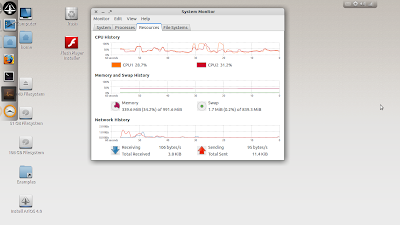
Slackel took about 300 MB RAM and 2-6% CPU (on average from dual CPUs) with system monitor running to load which is quite decent for a KDE 4 desktop. I noted a bug in the system monitor - though individual CPUs show 4% & 8%, in overall at the bottom CPU usage show 100%! Distro is quite smooth to use and I didn't feel any lag even while multi-tasking with a quite a number of applications open.


From Slackel 14.0
Overall
In overall, Slackel looks and feels good. It seems quite stable and during my post installation. However, some rough edges are there as well. I couldn't get my touchpad working and ran into trouble with gparted while installing. Slackel, undeniably, makes Slackware easy and even newbies can now experiment with Slackware and use it as their primary distro. Does it replaces Linux Mint or Bodhi I am using? Possibly no, till I get my touchpad working! Also, I am doubtful of its support for the Nvidia card I use (Geforce 630M) as Bumblebee is not there. Possibly I'll wait for future releases to actually use it on a regular basis. But, this is not the distro issue, rather Slackware repository issue. So far the distro is concerned, my verdict is that if you are looking for a stable KDE distro which is not Kubuntu or PCLinuxOS, possibly you should give Slackel a try.

Read more!
Tuesday, October 9, 2012

AriOS 4.0 Review: Polished, attractive and functional Ubuntu 12.04LTS

Debian gave birth to Ubuntu and Ubuntu, in turn, gave birth to hundreds of other distros like Linux Mint, Pinguy OS, Zorin, Crunchbang, Pear OS, Luninux, OS4, Super OS, Ultimate OS, Kiwi, etc. to name a few apart from the usual Kubuntu, Xubuntu and Lubuntu. When I read the release news of AriOS 4.0 on distrowatch, I was expecting something in the similar lines - just another remix of Ubuntu with plenty of necessary and unnecessary applications and other stuff! Needless to say, once you have a Linux Mint, do you really need any other Ubuntu derivative? These days, Linux Mint is my benchmark after my experiment with 20 odd Linux distros and I start comparing any distro I test with Linux Mint. If Linux Mint is 100, where do others lie?

I downloaded the 1.5 GB i-386 OS from Sourceforge. Then I created a live-usb and booted it up on my core-i7, 8 GB RAM, 64-bit desktop. I plan to boot it up on the other three 32-bit machines I have as well.


From AriOS 4.0
Desktop
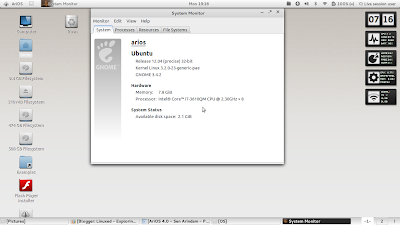
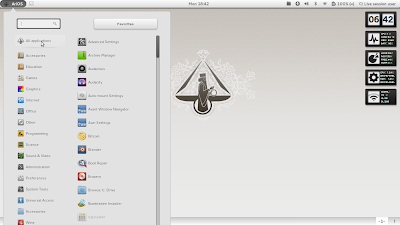
As the release announcement claims, it is just not another Ubuntu remix, but with a heavily tweaked Gnome 3 shell. True to their claim, the desktop looks amazingly refreshing! And special mention should be made of the attractive conky on the desktop! It is really cool. AriOS derives a lot from Fedora 17 and OpenSUSE 12.2 in terms of design. Applications can be launched two ways: one, through conventional AriOS menu (looks similar to Linux Mint) and two, take your cursor to top left corner and the Fedora Beefy Miracle like menu appears. The color combination is soothing and good that the developers didn't try any extravagant color like Ultimate OS. However, one thing I disliked is the big icons - they could have been smaller in size! Further, the menu actually runs beyond the lower dock and makes it difficult to use.


From AriOS 4.0
From AriOS 4.0
The Gnome 3.4 desktop, tweaked to make it appear like Gnome 2 shell, with the lower panel (DockBarX), looks really professional. All the open apps are visible on the DockBarX, while the upper panel has only the application currently being worked on. However, I tried changing the DockBarX preferences, it didn't change. Sound worked well, it recognized that I have a touchpad and single/double tap, vertical/horizontal scroll, all worked well. I could easily connect to wifi and write this article from AriOS.


From AriOS 4.0
While trying to boot up AriOS 4.0 on the two machines with limited ability I have, viz. Asus 1101HA with 1.34 Ghz Intel Atom Processor and 1 GB RAM and HP Desktop with Pentium 4 (2.4 Ghz) and 1.5 GB DDR RAM, I realized that AriOS has a 2D desktop as well in addition to the usual option of Ubuntu 3D, 2D and vanilla Gnome 3, Gnome classic!


From AriOS 4.0
AriOS 3D desktop which worked on my earlier laptop with "unlimited" ability, didn't load on these two limited machines. I logged out using Ctrl+Alt+Del and logged in again with AriOS 2D desktop. While logging in, I had a hard time figuring the username and password. It is not user and Password, as AriOS website tells, rather it is arios for username and leave empty password.

Overall the feel of using it was satisfactory even on the limited resource computers. Even AriOS 2D looks really stunning and nice.


From AriOS 4.0
Applications
As I guessed from the installation ISO size, AriOS is loaded with applications. Apart from the usual set of Firefox 15, Chromium,  Pidgin, Transmission, GIMP 2.8, LibreOffice 3.5 (no 3.6! Sad), VLC, Rhythmbox, etc., AriOS has some more pretty useful applications like uGet download manager, Virtualbox, Audacious, Audacity, Wine, subtitles editor, etc. Another very useful addition is Bumblebee installer - it is helpful for those having Nvidia graphic card. Bumblebee is simple to install and works well with Nvidia graphic card on my laptop.


From AriOS 4.0
One thing that is kind of puzzling to me - it makes sense to have two browsers for multitasking, but why two mail clients (Thunderbird & Geary)? Even more surprising is why two webcam applications (Cheese & Camorama)? I admit the internet, graphic and multimedia section is very rich in AriOS but at times giving more than one application for the same purpose reminds me of improper planning. A Linux Mint won't have a single redundant application. Developers should take care of it in future releases.

CPU and RAM Usage
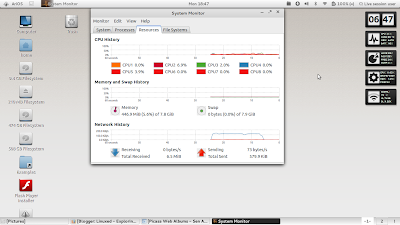
I thought I downloaded the 32-bit version but it worked well with my 64-bit machine, recognizing the eight cores and 8 GB RAM. That was surprising to me. CPU and RAM usage is moderate for a Gnome 3.4 desktop. With Firefox and Chrome open, CPU usage was around 2% with 450 MB RAM. Good job on that front - it is energy efficient.


From AriOS 4.0
From AriOS 4.0
Installation
I installed it on a 20 GB partition and tested it's performance on one of my systems with core i-3 and 2 GB RAM, it worked really well with AriOS 3D desktop. Performance-wise it was better than  the live boot and with Firefox and Chrome open, AriOS took about 50 MB RAM lower than the live boot.

Repository
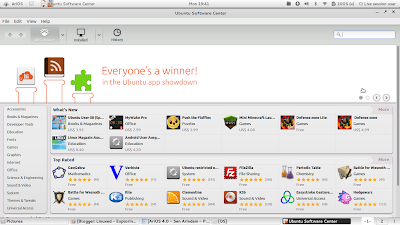
It shares Ubuntu repository and like Ubuntu, I can install apps from Ubuntu Software center or through Synaptic package manager.


From AriOS 4.0
Overall
AriOS brings a great alternative for Unity haters and Linux Mint users. One typical complain I get about Linux Mint is that it looks like Windows. Of course, Windows haters like me tweaked Mint to look more like a Linux and less like a Windows! But, AriOS has done it already for you. It brings you a different flavor with the aesthetics of a Linux Mint distro. Plus, I really like the application launcher similar to Fedora. However, some fine tuning is clearly required in terms of icon size and menu length. Else, it is really a good Ubuntu spin to try out. You may like it!

Read more!