I understand Linux purists would fume with this topic. I appreciate the LibreOffice suite - it is really good. But, a lot of Linux users who started with Windows, are more comfortable with MS Office. Also, I have seen quite a few Mac users using more MS Office for their documentation work than i-Works. Without going into the debate, given below are the simple steps how I installed MS Office 2010 Pro Plus in Ubuntu 12.04 LTS 64-bit through WINE. Following similar steps I don't think there would be any issue in installing MS Office 2010 in other Linux OSs as well.
Steps:
1. Download the latest PlayonLinux from here. 4.1.3 is the latest now - the version available in Ubuntu Software repository is not the latest, 4.0.6 possibly and that won't be useful for this exercise. If you've installed from Ubuntu repo, uninstall it before installing PlayonLinux 4.1.3.
For Ubuntu Precise & all its derivatives (Mint, Bodhi, Ultimate, Pear, etc.), you can install the latest PlayonLinux from the terminal as well. The commands are as follows:
$wget -q "http://deb.playonlinux.com/public.gpg" -O- | sudo apt-key add -
$sudo wget http://deb.playonlinux.com/playonlinux_precise.list -O /etc/apt/sources.list.d/playonlinux.list
$sudo apt-get update
$sudo apt-get install playonlinux

2. Copy MS Office ISO in a USB drive, if you don't have installation DVD!
Once installed, before actually proceeding to installation of MS Office, you should do this step to ensure that the App locates your ISO and reads it!
3. Start installation!
Once you start, playonlinux will download Microsoft fonts.

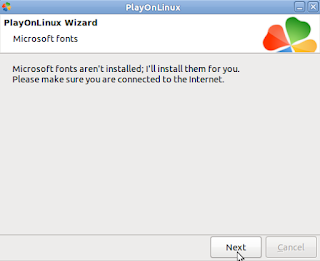

The office installation process is fairly simple. And keep your internet connection on for the process to work.
Click on Install on the top panel or Install a program on the right panel. Ignore the MS Office icons in the figure right now, they won't be there when you begin.
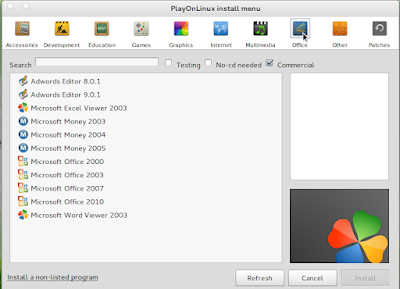 Go to Office, you'll see Microsoft Office 2010 entry. Click it and then click Install at the bottom. First a virtual drive Office2010 will be created and then you'll see the screen below.
 My USB, named New Volume is actually visible in the list when I pressed next.
 Ignore the FAT32 error and just click next.


Click next to start the installation. The app will download a few essential pre-requisites automatically before processing with the actual installation.


Once the pre-requisites are downloaded, actual process should begin with a screen like this.


 Ignore the last error message, if appears on your screen. Already Office 2010 is installed in Wine.
Once complete correctly, playonlinux screen will look like this.
 One caution, the installation with me was not as smooth as shown here. I became lucky at the third attempt!
Some screenshots of MS Office 2010 in my Pear Linux 5!


Steps:
1. Download the latest PlayonLinux from here. 4.1.3 is the latest now - the version available in Ubuntu Software repository is not the latest, 4.0.6 possibly and that won't be useful for this exercise. If you've installed from Ubuntu repo, uninstall it before installing PlayonLinux 4.1.3.
For Ubuntu Precise & all its derivatives (Mint, Bodhi, Ultimate, Pear, etc.), you can install the latest PlayonLinux from the terminal as well. The commands are as follows:
$wget -q "http://deb.playonlinux.com/public.gpg" -O- | sudo apt-key add -
$sudo wget http://deb.playonlinux.com/playonlinux_precise.list -O /etc/apt/sources.list.d/playonlinux.list
$sudo apt-get update
$sudo apt-get install playonlinux

2. Copy MS Office ISO in a USB drive, if you don't have installation DVD!
Once installed, before actually proceeding to installation of MS Office, you should do this step to ensure that the App locates your ISO and reads it!
3. Start installation!
Once you start, playonlinux will download Microsoft fonts.


The office installation process is fairly simple. And keep your internet connection on for the process to work.


Click next to start the installation. The app will download a few essential pre-requisites automatically before processing with the actual installation.


Once the pre-requisites are downloaded, actual process should begin with a screen like this.


Once complete correctly, playonlinux screen will look like this.

Some screenshots of MS Office 2010 in my Pear Linux 5!


Read more!
